Getting started#
This guide takes you from a fresh account to a downloaded program file you can load on a Universal Robots arm. Plan on five minutes.
ChatURP writes both robot generations: .urp for PolyScope 5 (and CB-series PolyScope 3) and .urpx for PolyScope X. You pick which one a chat is for before your first prompt.
Create an account#
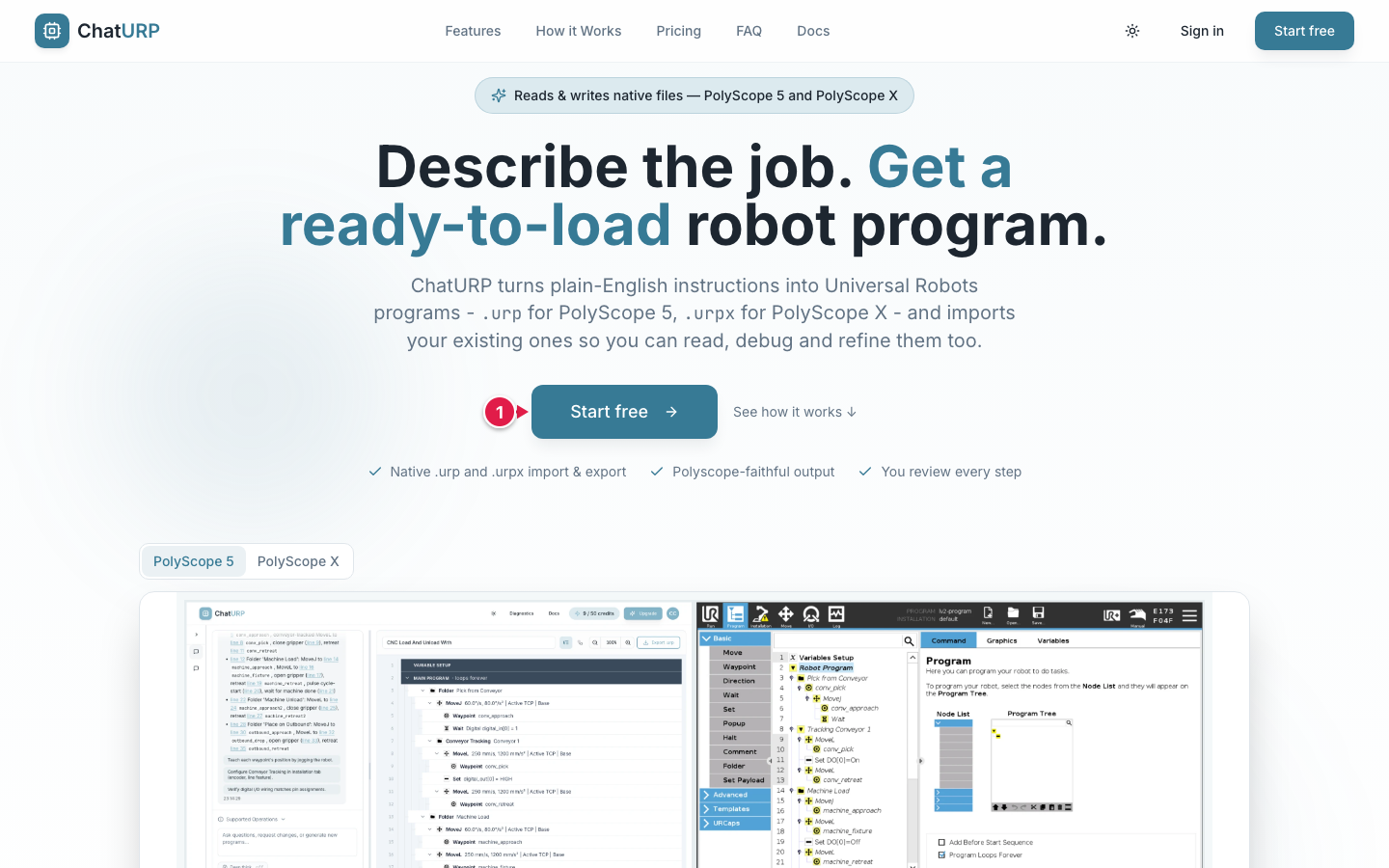 Fig. B-1: Landing page with the primary call-to-action.
Start free— the primary call-to-action.
Open the landing page and click Start free. That opens the pricing page, where the Free card's Start free button takes you to the sign-up form. (If you reach /auth some other way it opens in sign-in mode — click Sign up at the bottom of the card to switch to account creation.)
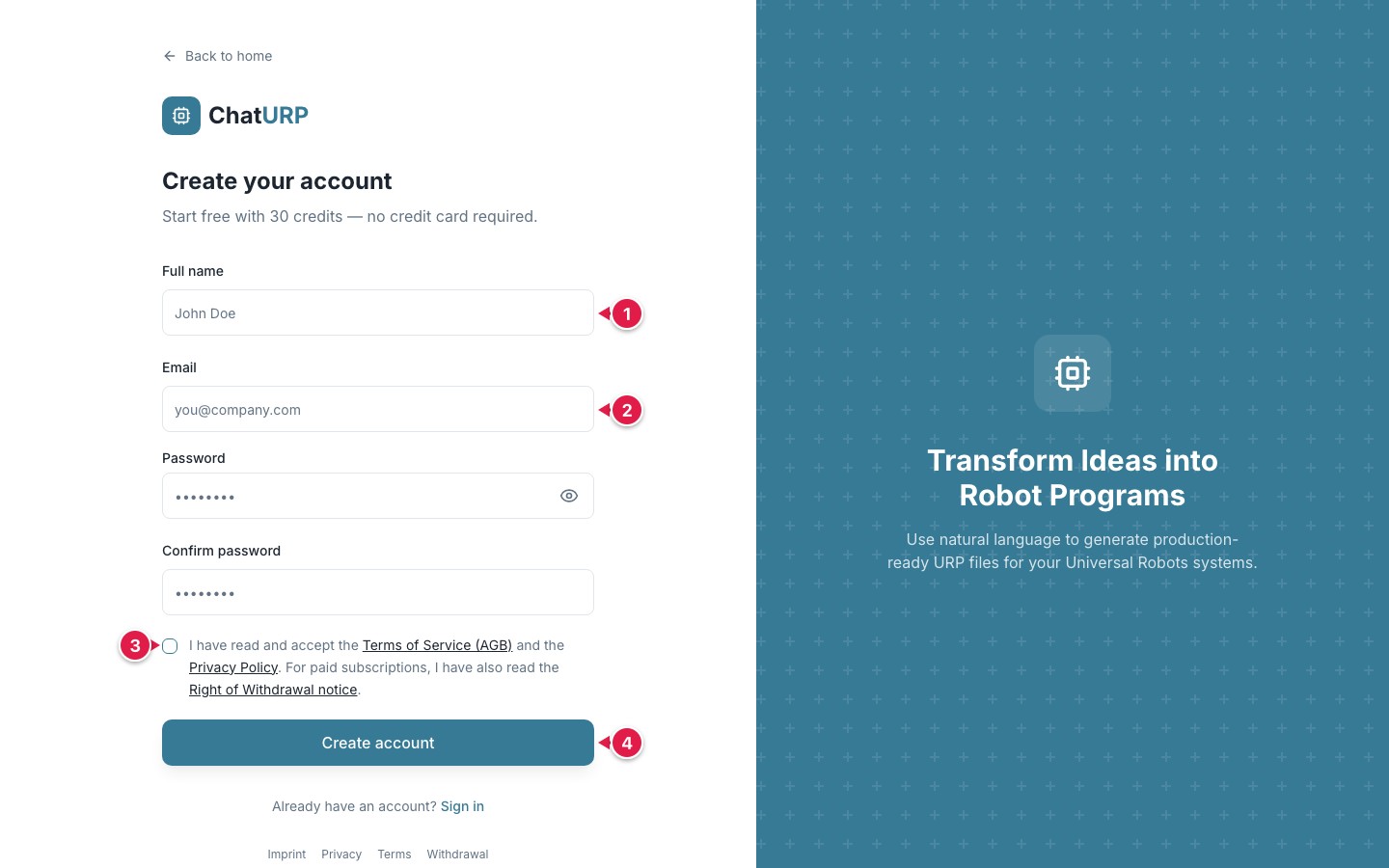 Fig. B-2: Sign-up form — "Start free with 30 credits — no credit card required".
Full name— optional.- Your email address.
- Tick the consent checkbox to accept the Terms, Privacy Policy and Right of Withdrawal notice.
Create account— sends the confirmation email.
Fill in your email, a password of at least 8 characters, confirm the password, and tick the box accepting the Terms of Service (AGB), Privacy Policy and Right of Withdrawal notice. Click Create account.
ChatURP sends a confirmation link to your inbox. Click it to activate the account, then sign in. After sign-in you land on the Chat.
If the confirmation email does not arrive in a few minutes, check spam or use Resend confirmation email on the confirmation panel.
What "free" includes. A new account gets 30 credits, once. They are a one-time allowance, not a monthly refill: they do not reset, and no card is required to use them. Every message you send the AI costs 1 credit, and importing a program costs 1 credit too. See Account & billing for what the paid plans add.
Write your first prompt#
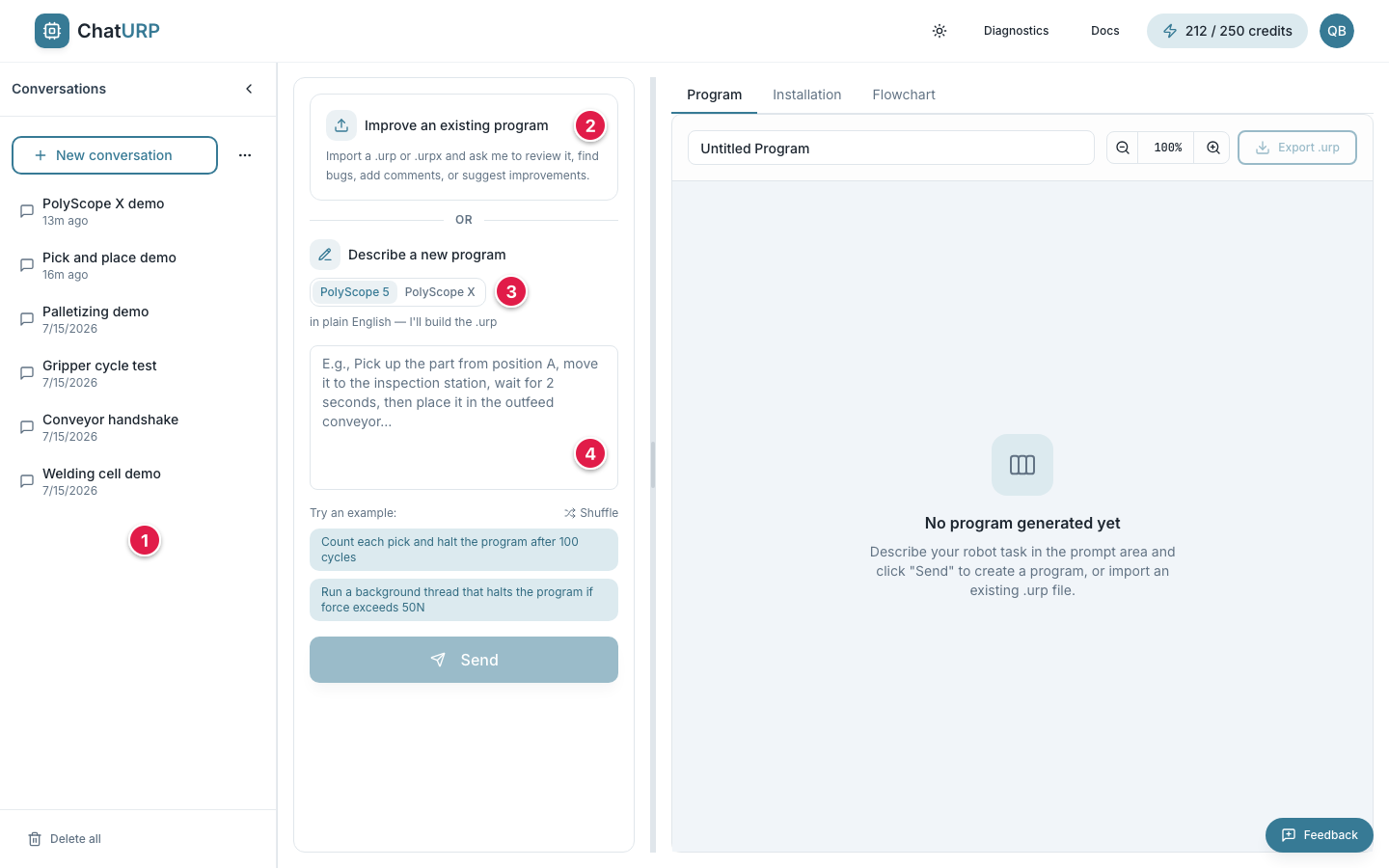 Fig. B-3: Chat on first open, before any prompt is sent.
- Conversation sidebar — your saved chats appear here.
Improve an existing program— import a.urp,.urpxor support.zipinstead of starting from a description.PolyScope 5/PolyScope X— which robot generation this chat is for.- Prompt box — type the task, then
Send.
The chat has three regions: the conversation sidebar on the left, the chat and prompt area in the middle, and the program viewer on the right. On a fresh account everything is empty and you get two ways to start — import an existing program, or describe a new one.
Pick the robot generation first. The PolyScope 5 / PolyScope X toggle sits directly under Describe a new program. It is stamped onto the conversation when the chat is created and cannot be changed afterwards — a chat is for one generation, for its whole life. If you pick the wrong one, start a new conversation.
The first time you open the Chat, a short product tour runs by itself. You can replay it any time from the account menu in the top bar → Take the tour.
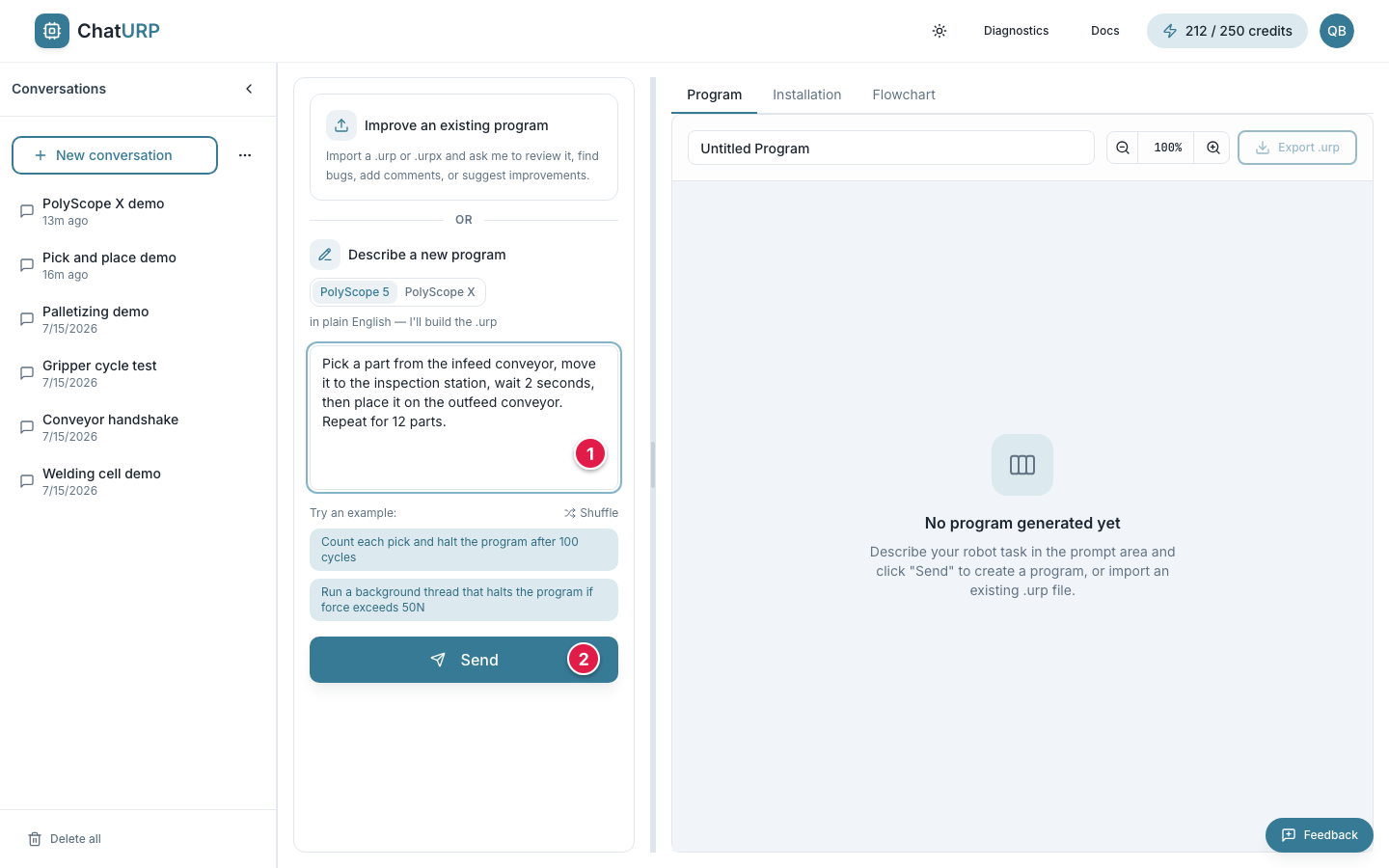 Fig. B-4: A first prompt typed in, ready to send.
- Your task, in plain English.
Send— or pressCtrl+Enter/Cmd+Enter.
Type a task into the prompt box and click Send (or press Ctrl+Enter / Cmd+Enter). Keep the first prompt short and concrete. You can also click one of the example chips under Try an example: to load a ready-made prompt, and Shuffle for a different pair.
Three prompts that work well as a first try:
- Move the robot 100 mm down, then return to start.
- Pick up a part from the table and place it on a conveyor belt.
- Wait until digital input 0 is high, then run a palletizer for 12 boxes in a 3 × 4 pattern.
While it works, the button reads Thinking… and the chat shows Thinking… with the elapsed seconds. Most requests finish in 10 to 30 seconds. A big one takes longer because it is run in stages behind the scenes; nothing is cancelled while it runs, and if it is still going after a few minutes you get a Still working notice rather than an error. If a request is genuinely too large to finish, the reply says so and asks you to split it into smaller steps.
Inspect the generated program#
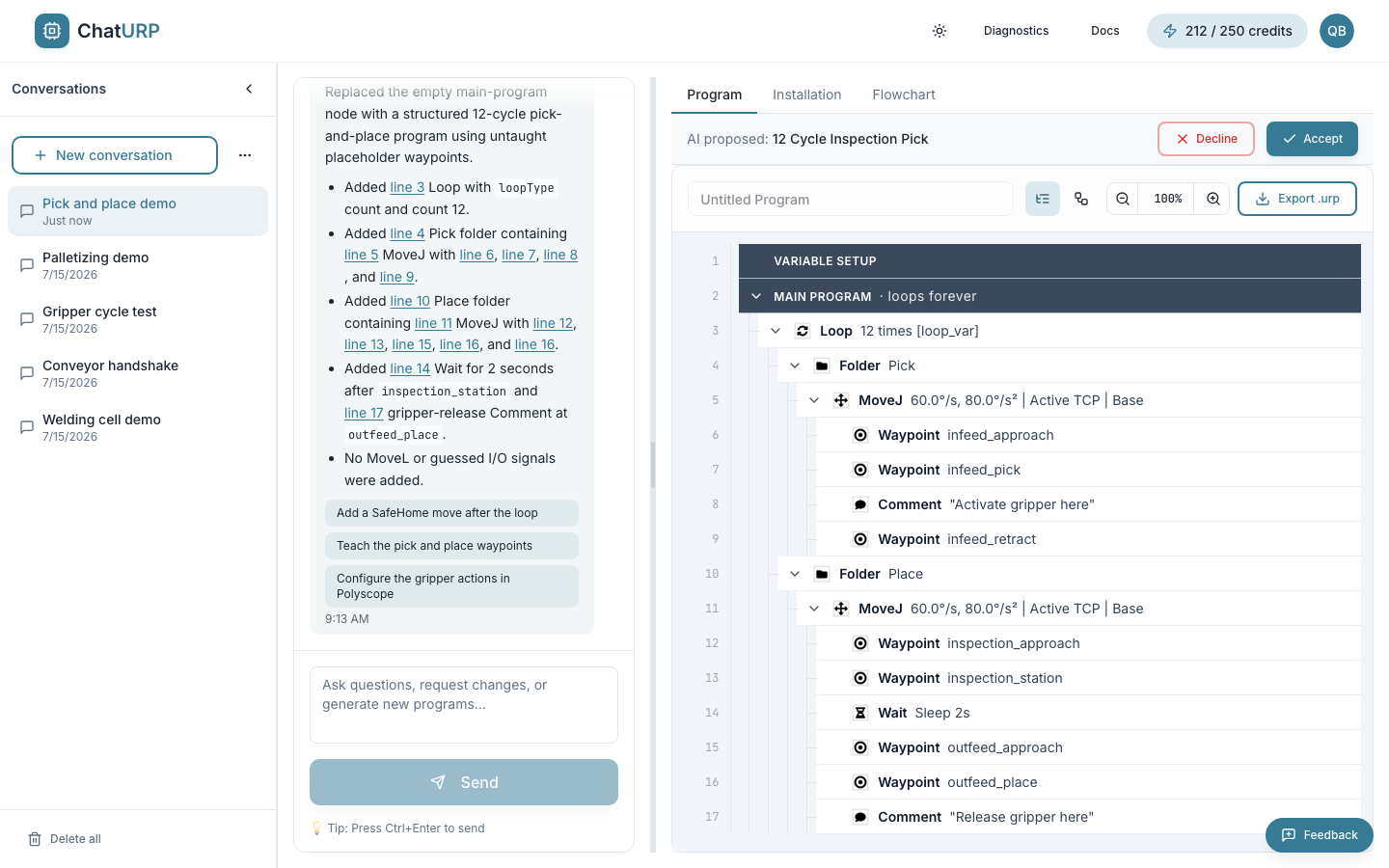 Fig. B-5: A generated program waiting for review —
 AI proposed: <name> with Decline and Accept.
Nothing the AI produces is saved as your program until you say so. A banner appears above the tree reading AI proposed: followed by the proposed name, with Decline and Accept.
- The tree underneath shows the proposal as a diff against what you had: added rows in green, changed rows in amber, removed rows struck through in red.
Acceptmakes it the current program and adds a version to the conversation's history.Declinethrows the proposal away and tells the AI on your next message that you rejected it.
You cannot send another prompt or import a file while a proposal is open — resolve it first.
Read the tree top to bottom. Each row is one step the robot will run, and indentation shows the structure PolyScope displays on the pendant. Rows start expanded; the chevron on a container row collapses it. Use the program-name field at the top of the viewer to give the program a meaningful filename.
If something is wrong or missing, type a follow-up message in the same conversation — for example "add a 2-second pause after the pick". ChatURP keeps the program in context and applies your change instead of regenerating from scratch. Many replies also end with one-click follow-up suggestions; click one to drop it into the prompt box.
Export to .urp#
When the program looks right, click Export .urp at the top right of the viewer. ChatURP downloads a .urp file named after the program (spaces become underscores; a blank name gives robot_program.urp). If an installation is attached to the conversation you get a <name>_bundle.zip instead, holding the .urp, its matching .installation and — when there is one — the .variables file. Unzip it and copy every file across, since the robot pairs the program to its installation by name. See Exporting for the detail.
On a PolyScope X chat the button is Download .urpx and gives you the bundle as one file.
Load the file on the robot:
- Copy the file onto a USB stick.
- Plug the stick into the teach pendant.
- On the pendant, open the Hamburger menu →
Open→Programand pick the file from the USB drive (on older CB-series controllers this isFile→Load...). - You may need to teach waypoints and re-check any feature or template parameters before running the program — the AI does not know your real work environment, so generated coordinates are starting points, not measured positions.
- Step through the program in
Manualmode at low speed before running it at full speed.
ChatURP never sends the file to the robot directly. The download lives in your computer's download folder until you move it across.
Next steps#
- Read the Chat guide for a full tour of the editor.
- Read Diagnostics if you have a robot support file to analyse.
- Read Account & billing to manage your subscription or check remaining credits.
- Short answers to common questions are in the FAQ; anything else, use the contact form or the
Feedbackbutton in the bottom-right corner of the app.