Diagnostics#
Diagnostics reads a Universal Robots support file and surfaces robot identity, log history, system logs, and flight-recorder telemetry.
What it does#
You drop a UR support .zip onto the Diagnostics page and get a single view of what the robot saw at the moment of the fault. See Privacy for how your data is handled.
Getting a support file from the robot#
On the pendant, plug in a USB drive (1 GB or larger, FAT16/FAT32), open the Log screen, tap Support File, tap Continue, select the USB drive, and tap Save. PolyScope writes a .zip to the stick — don't remove it until the export finishes. Copy the .zip to your computer.
Diagnostics accepts three shapes of input:
- A full support
.zip(the default PolyScope export). - A single inner recording
.zip. - Loose files —
realtimedata/record.csv, orlog_history.txt/.bak/.log— dropped on their own or several at once. This mirrors UR's own log viewer, and it is the way to read a recording somebody sent you without its archive.
Drop either one .zip or a set of loose files — a mix of the two is ambiguous and is refused with a message saying so.
Uploading#
Click the drop zone or drop the file onto it. While the file is being read, you see Analyzing support file….
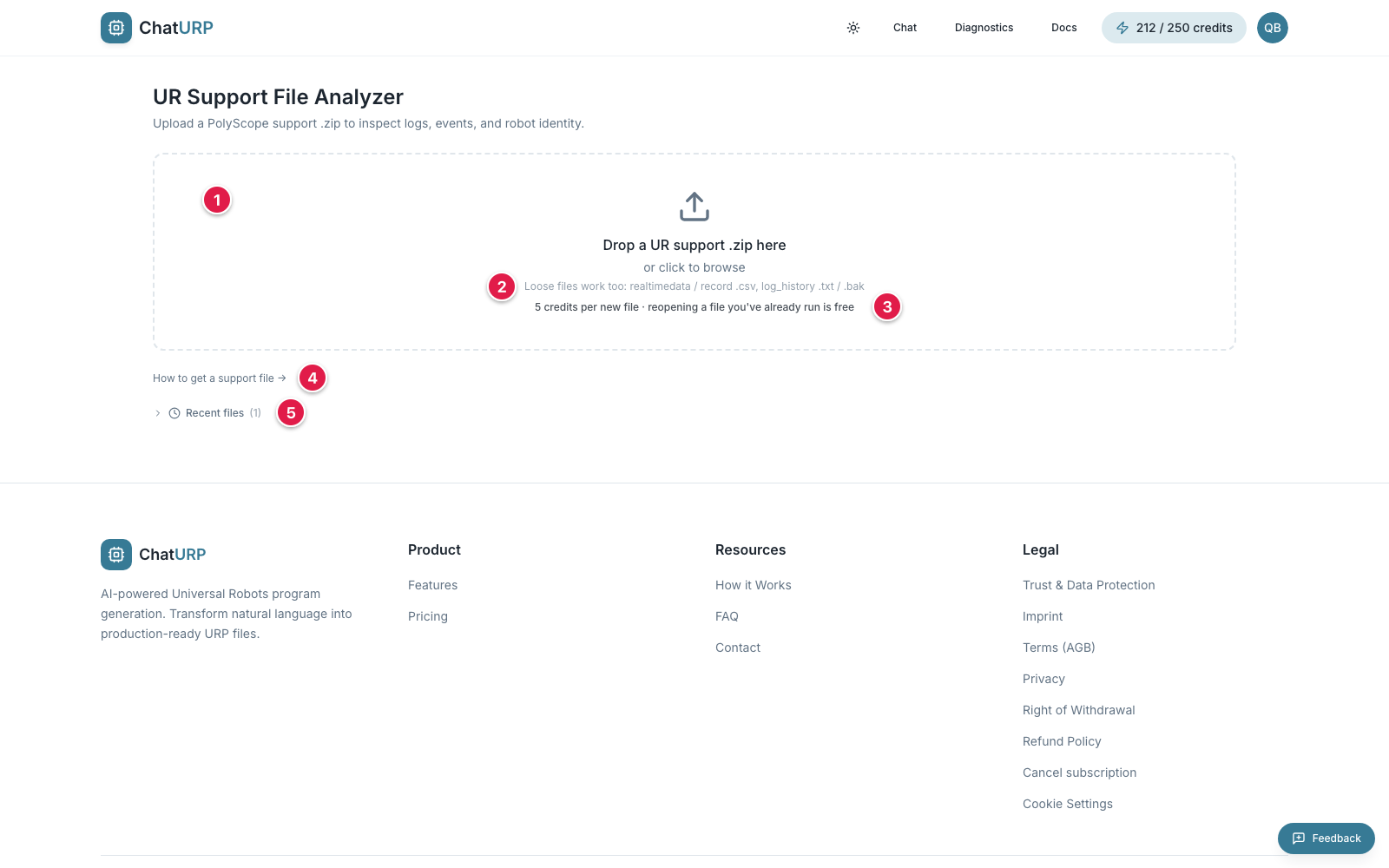 Fig. D-1: Empty drop zone before any file is loaded.
- Drop zone — drop a UR support
.ziphere, or click to browse. - The line under it naming the loose files that also work.
- The price line: 5 credits per new file, reopening free.
How to get a support file →— link into this page.Recent files— the files this browser has already analysed.
An upload costs 5 credits, and it is charged only after the file has been read successfully: a corrupt or unsupported archive produces an error and costs nothing. The charge is keyed to the file's content, so re-uploading the same capture is free — on this device or any other, from the Recent files list or from disk. Loose files over 512 MB each are skipped, and a very large support file may fail to load on a phone; open those on a laptop.
Diagnostics is free to try. Logged-out visitors see a blurred preview and a sign-up prompt; any signed-in account can analyze files, metered by its credit balance. Generating a full Performance report costs 20 credits and requires a Pro subscription, as does an AI analysis (3, 5 or 7 credits, by how many logs actually carry entries in the window you pick).
Anatomy of the diagnostics view#
After analysis succeeds, the page splits into four parts.
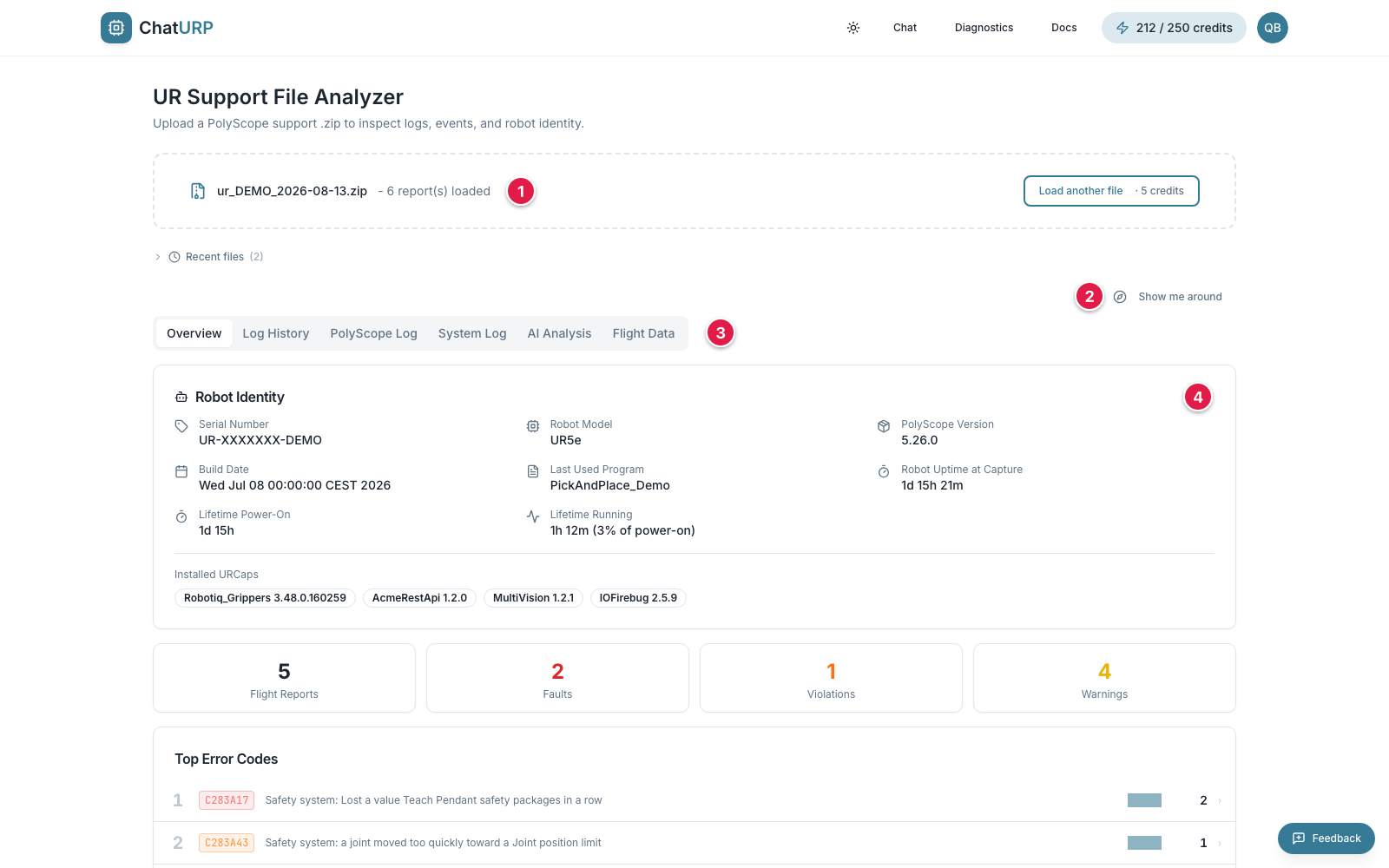 Fig. D-2: Loaded view with file pill,
 Show me around, tab strip, and content panel.
- File pill — the filename and how many reports were found.
Load another fileswaps it. Show me around— replays the guided walkthrough of the tabs (it runs once by itself after your first analysis).- Tab strip —
Overview,Log History,PolyScope Log,System Log,AI Analysis, andFlight Data. The last one only appears when the file contains flight-recorder data. - Content panel — renders the selected tab.
Loading a file puts it in the address bar as /diagnostics/<file-id>, and switching tabs adds ?tab=…. Reloading, going back, or keeping the link reopens the same file on the same tab — as long as that file is still in this browser's Recent files. If it isn't, the page says so and asks you to upload it again.
Overview tab#
The Overview tab gives you the one-screen summary.
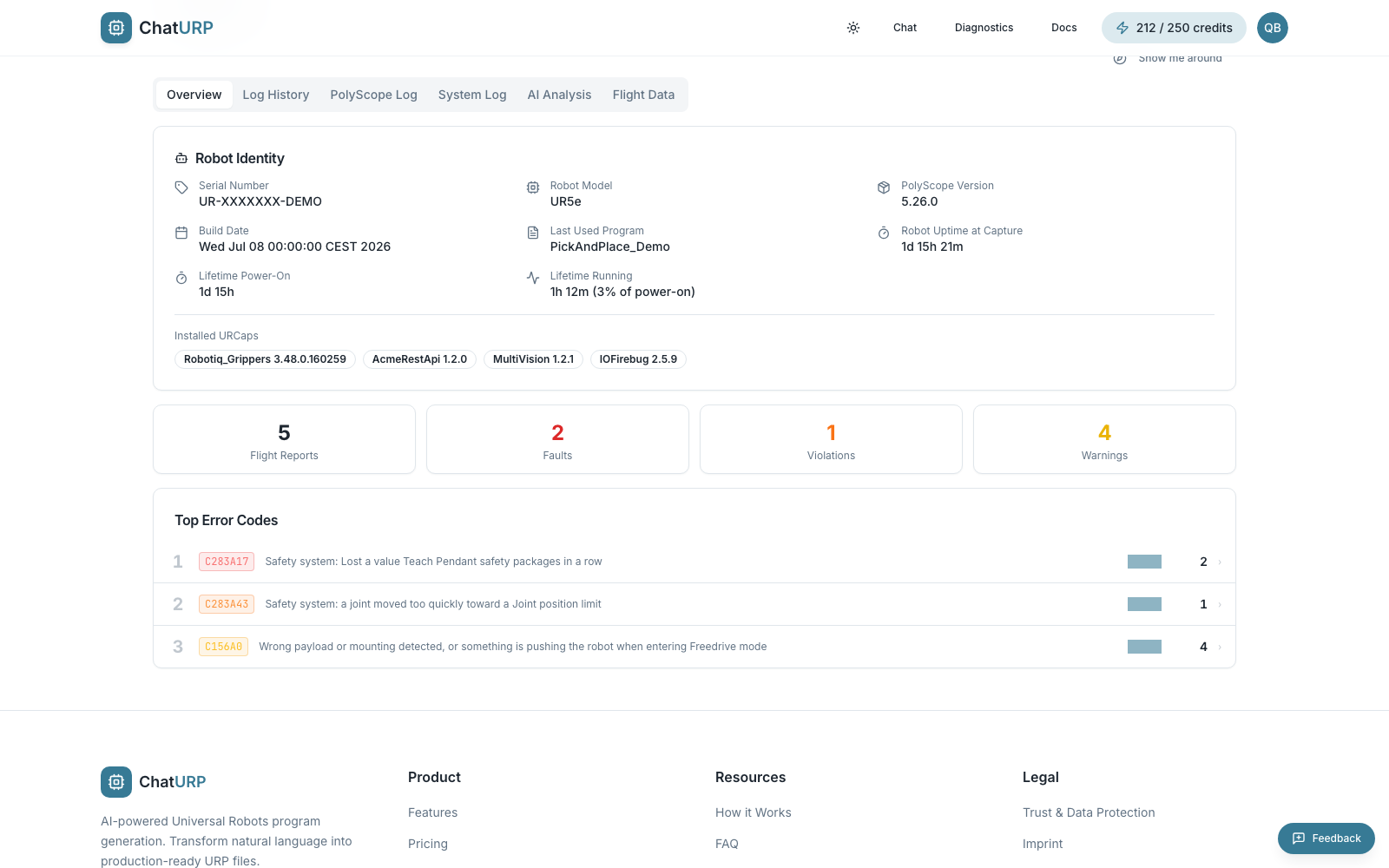 Fig. D-3: Overview tab — identity, stats, and top error codes.
- The
Robot Identitycard shows serial number, robot model, PolyScope version, build date, the last used program, robot uptime at capture, lifetime power-on and running hours, and the installed URCaps. - A four-up stat grid summarises the file: flight reports, faults, violations, warnings.
- The
Top Error Codescard lists up to ten codes, worst severity first and then most frequent, each with a daily-activity sparkline. Click a row for that code's full history.
Log history#
Log History shows the robot's event log, grouped by day and then by robot session.
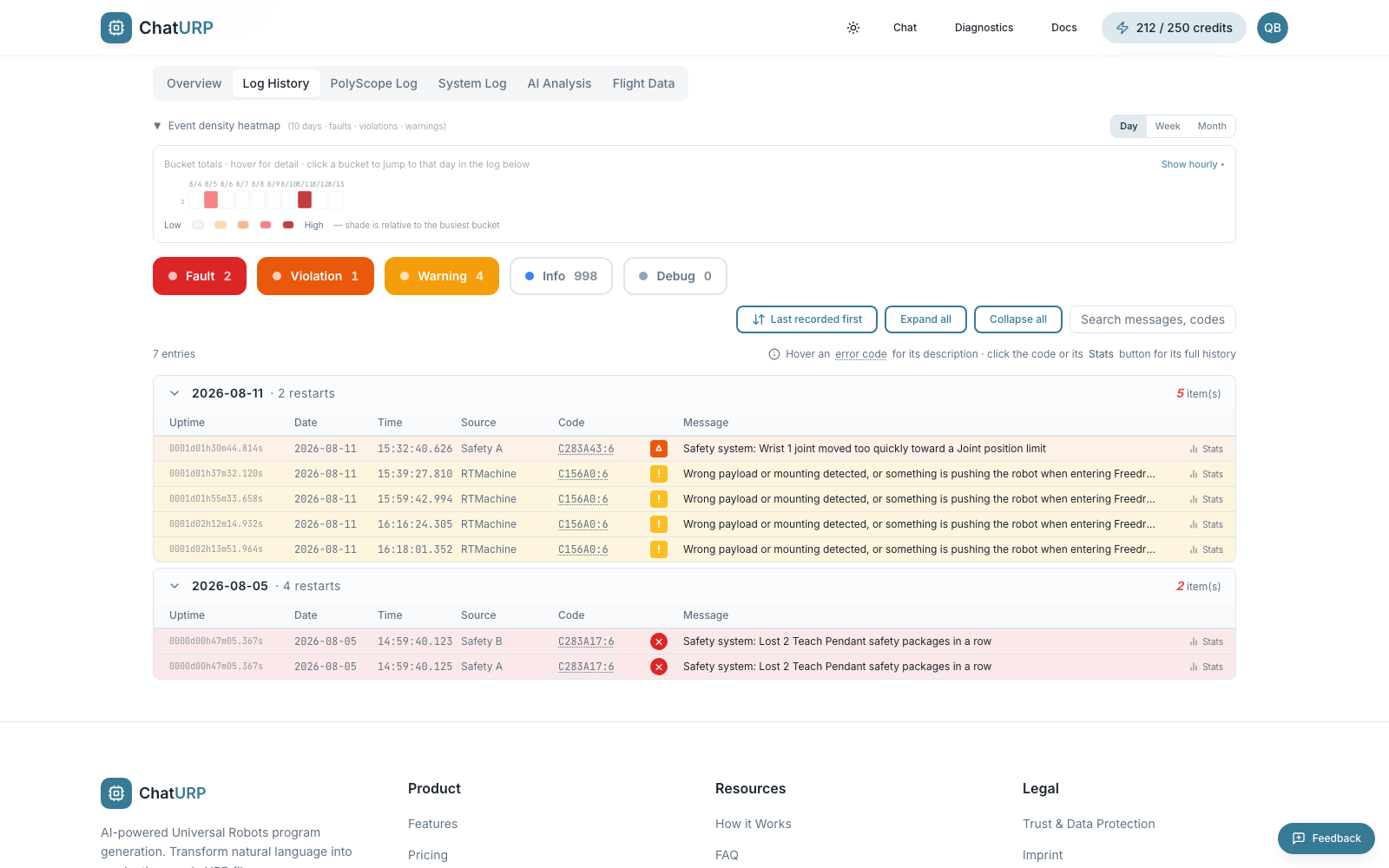 Fig. D-4: Log history with severity pills, toolbar, and day groups.
- Severity pills filter the view:
Fault,ViolationandWarningare on by default,InfoandDebugare off. Your selection is remembered across sessions. - The toolbar carries a sort toggle —
Last recorded first/First recorded first, which orders by the log's own recorded sequence rather than by the clock — plusExpand all,Collapse all, and a search box matching messages, codes and sources. - Day headers show the date and the day's event count; each session header shows its start time and runtime.
- Hover an error code for its description. Click the code, or its
Statsbutton, for that code's full history: what it means, what to do, which days it fired on, which program it happened in, the time of day, and what else fires around it. - Developer entries — UR-internal trace messages PolyScope hides — are not shown and have no toggle in the toolbar. If a flood of them is the only thing left after filtering, the empty view offers a
Show developer entriesbutton.
If the controller's clock was not keeping time, the tab says so at the top, and marks each point in the list where the clock jumped backwards. Order stays trustworthy; the dates on the rows may not be.
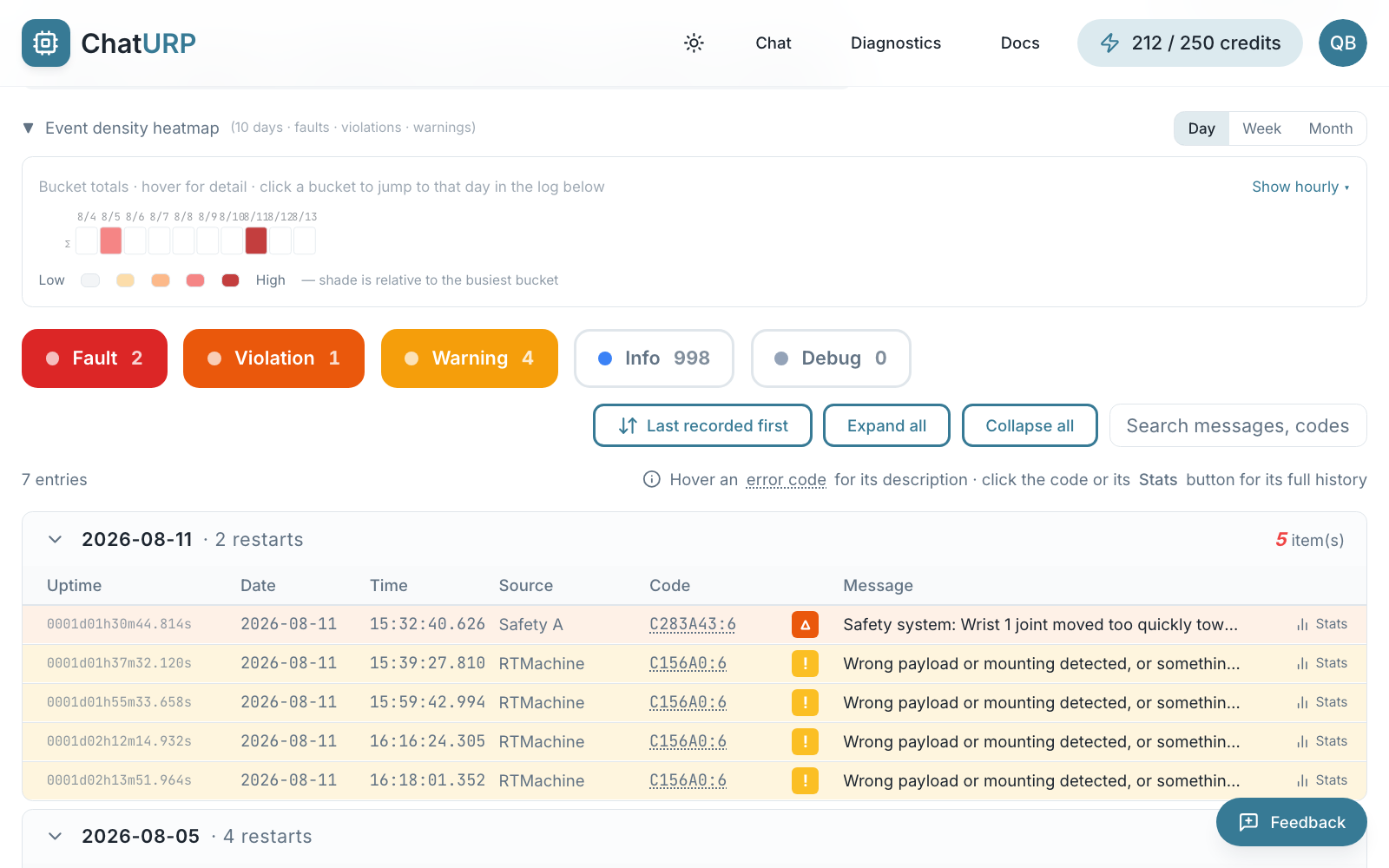 Fig. D-5:
 Event density heatmap above the log list.
The Event density heatmap sits above the list and shows when events cluster across the whole capture. Switch it between day, week and month, use Show hourly for the hour-by-hour grid, hover a bucket for detail, and click one to jump to that day in the log below.
PolyScope log#
PolyScope Log shows the messages PolyScope itself logged during the session.
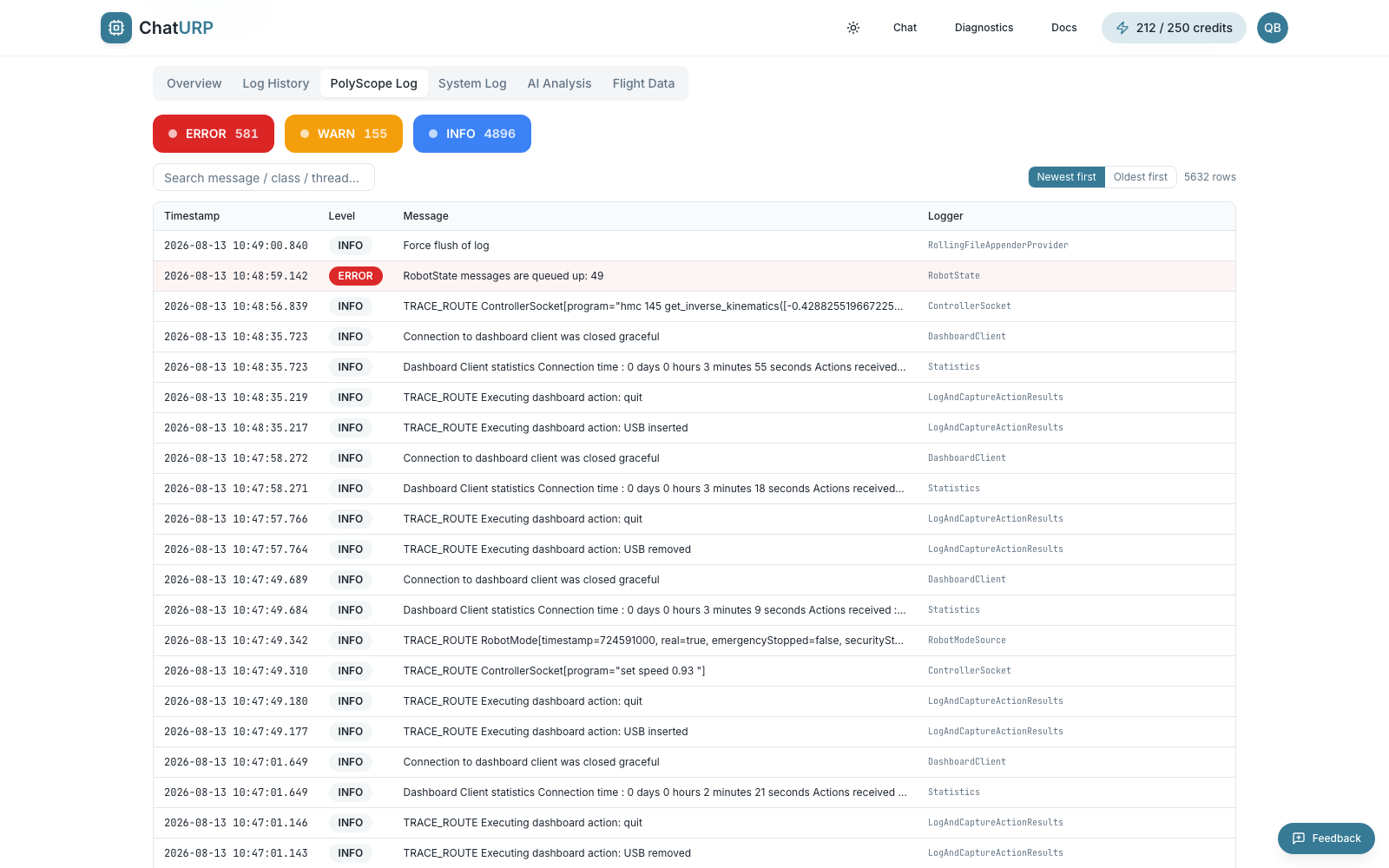 Fig. D-6: PolyScope log with level pills and an ERROR row highlighted.
- Level pills (
ERROR,WARN,INFO,DEBUG,TRACE) are built from the levels this file actually contains, and each carries its row count. - The search box matches message, class and thread. Sort with
Newest first/Oldest first. - The view paginates at 200 entries per page.
System log#
System Log shows what the controller's operating system recorded — restarts, kernel messages, and URControl's own output.
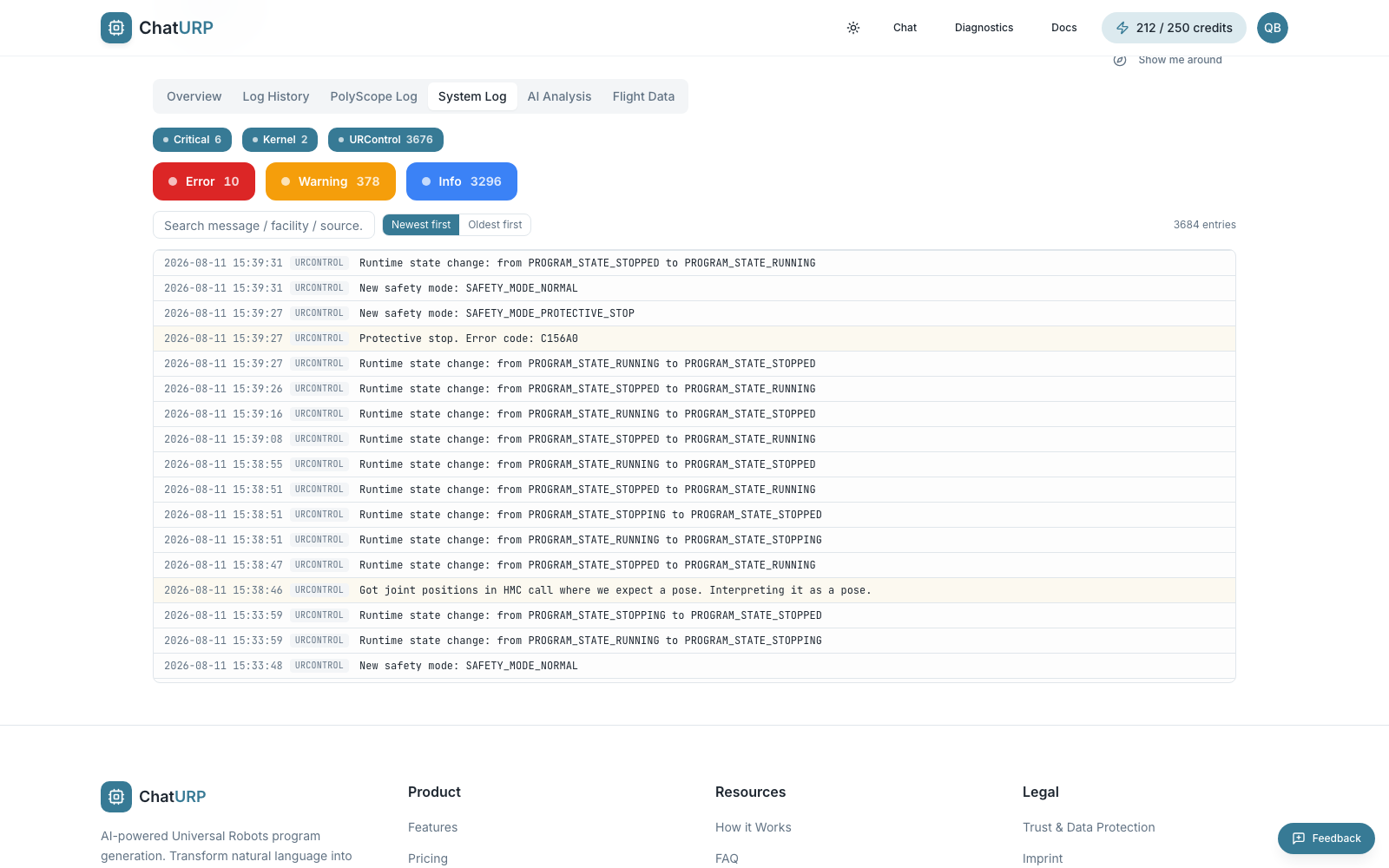 Fig. D-7: System log with source and severity pills.
- Source pills pick the streams to merge:
Critical,Kernel,URControl. Only sources that carry rows get a pill. - Severity pills (
Error,Warning,Info) narrow it further, the search box matches message, facility and source, andNewest first/Oldest firstsets the order.
AI analysis#
The AI Analysis tab reads the robot's own logs and tells you what happened, in plain language, aimed at the problem you describe. It is a Pro feature and each run costs credits (see Pricing below).
It reads logs only — the event log, the PolyScope log, the system log, plus the robot's identity header. It does not read your program or installation, because nearly everything worth knowing about a fault is already in the log.
Running one#
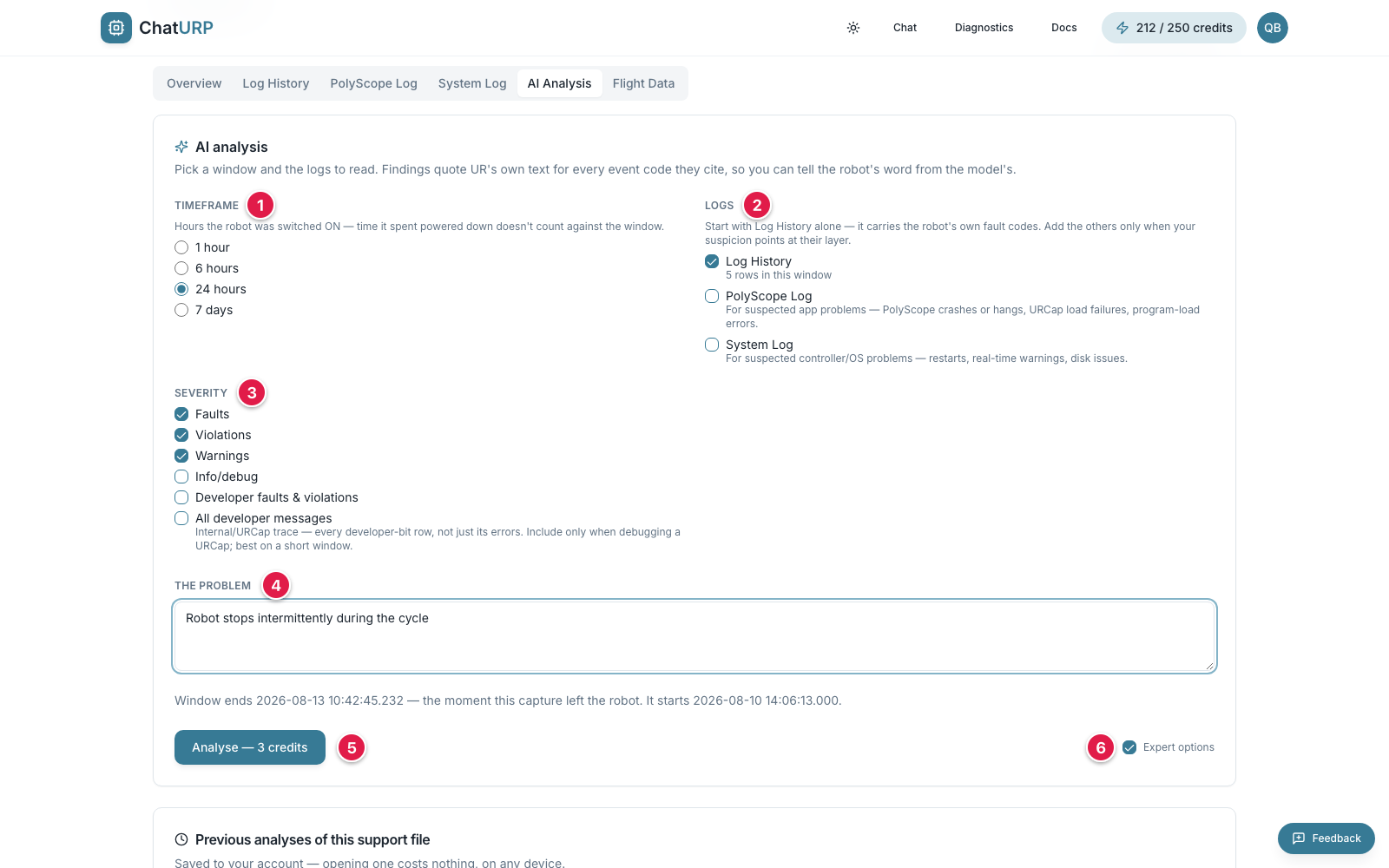 Fig. D-8: The AI analysis panel before a run, with
 Expert options turned on.
Timeframe— 1 hour, 6 hours, 24 hours or 7 days.Logs— which logs to read; each ticked log states how many rows it holds in the window.Severity— which classes of entry to include.The problem— the required description of what you are chasing. The line under it states where the window starts and ends.Analyse — 3 credits— the button, always priced for the current selection.Expert options— the switch that shows or hides theLogsandSeveritygroups.
Describe the problem. The The problem box is required, and it is the single biggest lever on the quality of the answer: "robot stops mid-cycle about twice a shift, no error on the pendant" gets you a different report than "faults".
Pick a timeframe. These are hours the robot was switched on: time it spent powered down does not count against the window, so "6 hours" means six hours of running rather than six hours of calendar. On a robot that works a shift a day, that is the difference between a window full of evidence and one full of the night. The window ends at the newest entry in the capture, not at today's date, so a support file taken three weeks ago still analyses the running hours before it was taken.
A window your current selection cannot fit in is greyed out with too much data with this selection, and the panel drops to the widest window that does fit. Nothing is remembered behind your back: undo the change that made your window too heavy and your window comes back.
If the shorter window would hide the incident, the panel says so before you spend anything — for example, this 1 hour window holds no faults — the 7 days window holds 41. It never widens the window for you; it tells you, and you decide.
Then click Analyse. The button always states the price for the current selection.
By default that is the whole panel: it reads Log History — the log carrying the robot's own fault codes — at faults, violations and warnings, for 3 credits. A line under the button restates exactly what will be read.
Expert options (the checkbox beside the button, remembered for next time) adds two groups for when you already know which layer you are chasing:
- Logs.
PolyScope Log(the application layer — crashes, URCap load failures, program-load errors) andSystem Log(the controller and its operating system — restarts, real-time warnings, disk). Each log that carries rows is one more credit step: 3, 5, then 7. - Severity.
Faults,Violations,Warnings,Info/debug, and two developer classes —Developer faults & violationsandAll developer messages— which surface the internal chatter a URCap developer needs to debug their own node. Useful at one hour, far too much at seven days.
Each ticked log states how many rows it holds in the window you picked, and says so plainly when it holds none: No rows in this window — not analysed, and not charged for, naming the wider window that would carry it. An unticked box and an empty log need different fixes, and only one of them costs credits.
As a last resort — when even one hour of a stream is too much — the panel refuses before charging: over 20,000 rows in one log, or over roughly 600,000 characters of log text even at an acceptable row count. It names the log, the real number, and the lever to pull. It refuses rather than quietly analysing a slice, because a shortened window that still answers confidently is indistinguishable from a healthy robot.
If the robot's clock jumped inside the window — a controller that came back up believing it was a different date — the panel says so before you pay, and the window stops at the jump. A duration measured across a clock jump is not a duration.
What you get#
The report opens full-screen the moment you click, first as progress — how many of the calls are complete, and the seconds elapsed and then as the report in place. A run takes roughly 30–90 seconds. You can close the view and keep working — the run carries on and the report waits on the AI Analysis tab. You can leave the page entirely; the analysis finishes without you and is saved to your account.
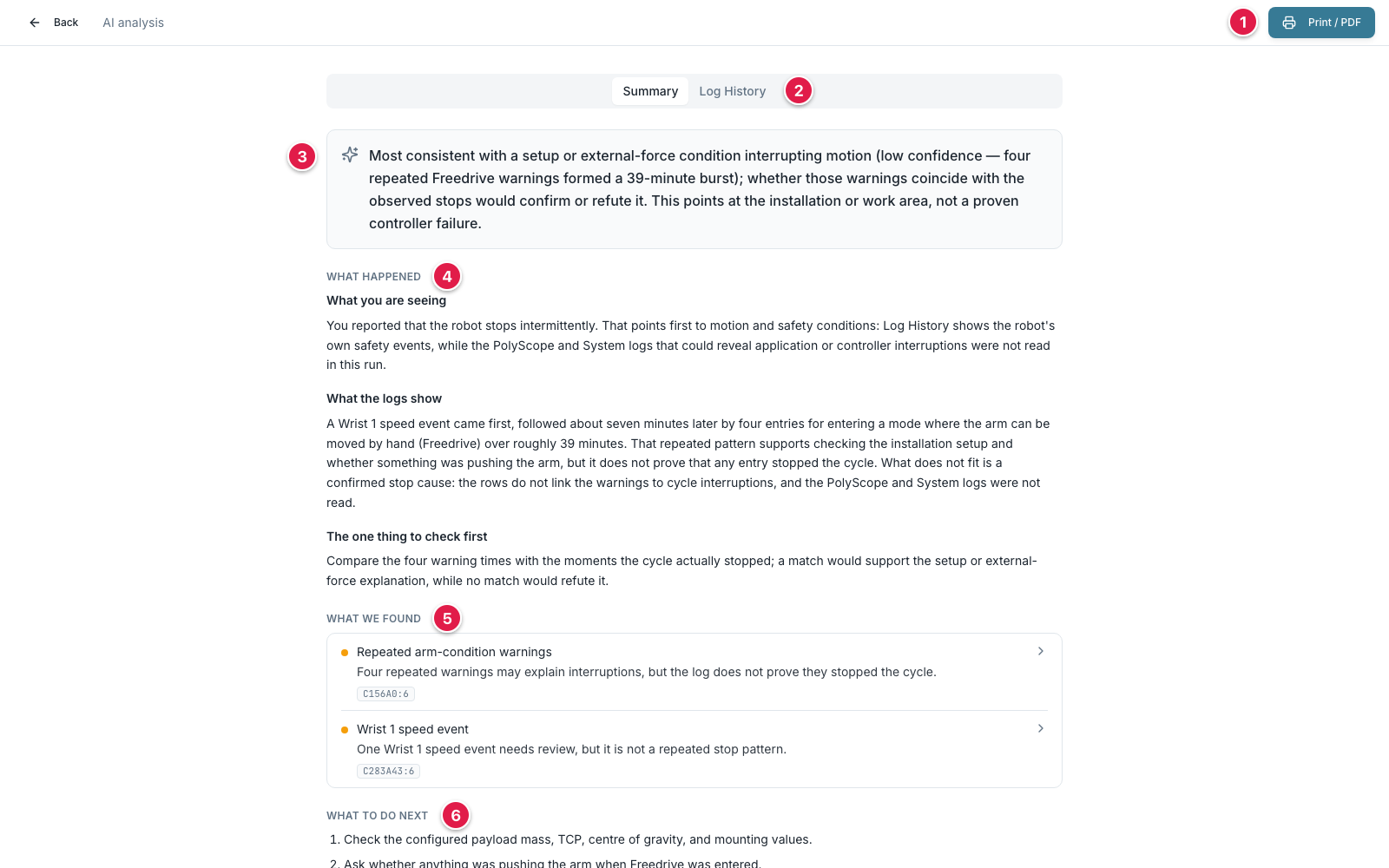 Fig. D-9: The finished report — the
 Summary layer, with one evidence tab per log beside it.
Print / PDF— the whole report, fully expanded, for a ticket.Summaryand the per-log tabs (here justLog History) holding the evidence behind it.- The verdict.
What happened— the story in prose.What we found— the findings, each with the event codes it cites.What to do next— then, below the frame,Your questionwith the direct answer to what you typed.
The two layers are the whole design:
- Summary — the answer. A verdict, the story in prose, up to five things found, up to three things to do, and a direct answer to the question you asked. A footer names the window, the rows analysed, the logs, and what it cost.
- One tab per log — the evidence. Findings arrive collapsed; each header carries the severity, the title, the conclusion in one sentence, the event codes it cites, what raised it, how often it occurred, and how confident the model is. Open a card and it reads: what was observed, then UR's own words for every error code cited, then the analysis, then the recommendation.
That order is deliberate. UR's text is quoted from the official error-code documentation and attached by our server; the analysis and recommendation are the model's inference, and are labelled as such. You should never have to guess which of the two you are reading.
Pricing, re-runs, and where the result lives#
- A run costs 3 credits for one log, 5 for two, 7 for all three — counting only the logs that actually carry rows in your window. The button always shows the price for what you have selected.
- Re-opening a finished analysis is free. The browser that ran it answers instantly and offline; on any other device, opening the same support file and asking for the same analysis serves the saved result at no charge.
- A deliberate re-run costs the full price again. Same window, same logs, same problem description — a fresh run is a fresh analysis, and the report offers it as a
Run againlink that states the price.
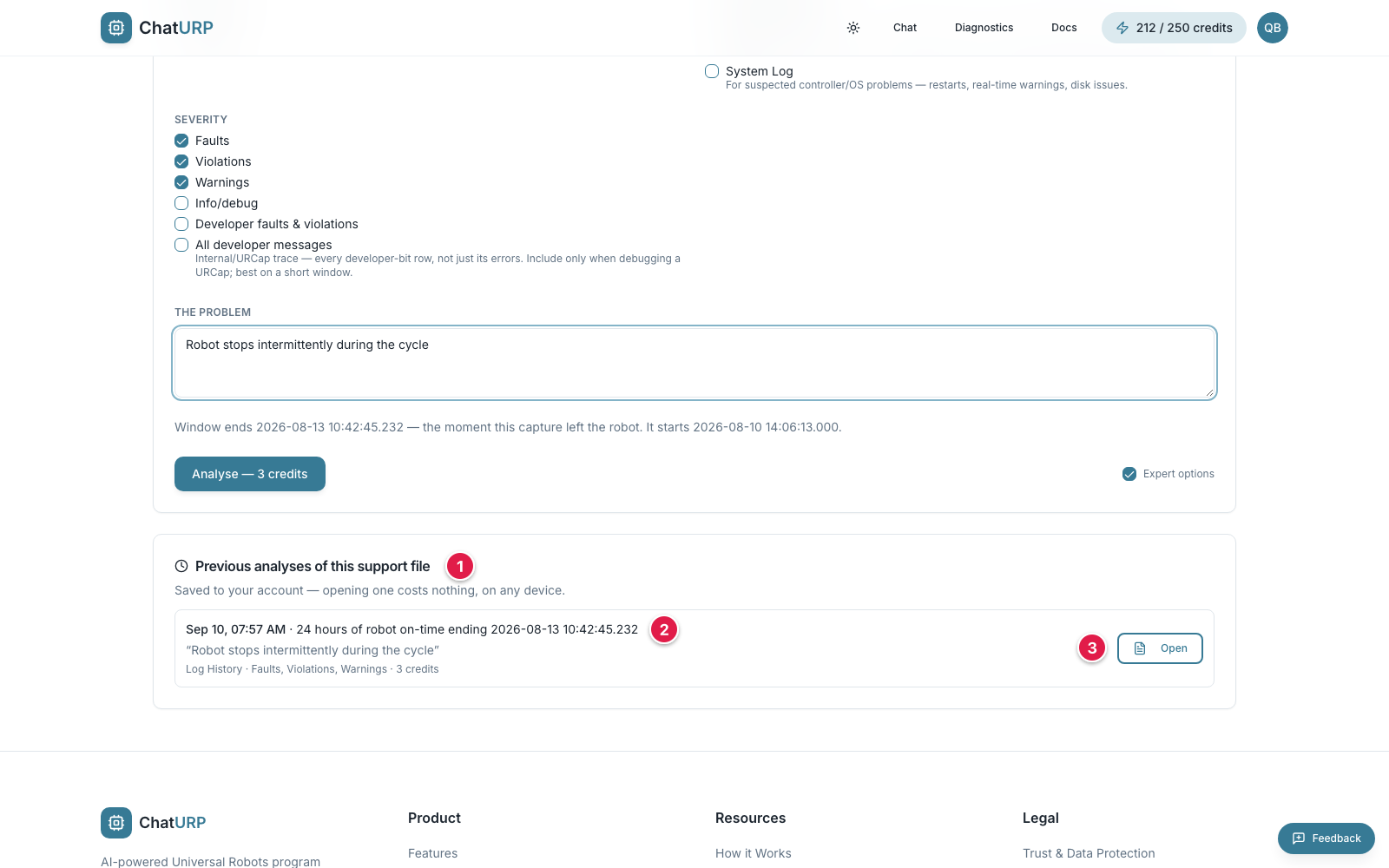 Fig. D-10:
 Previous analyses of this support file — every run you have bought for this capture.
- The card heading, and the line saying opening one costs nothing, on any device.
- One row per run: when it was made, the window, your problem description, the logs and severities, and what it cost.
Open— reopens that report, free.
Runs are saved to your account and kept until you delete the account, which is why you can dismiss the overlay, reload, or leave entirely. You do have to open the same support file again to find them — the file itself is never uploaded, and it is what identifies the capture. A run that fails or runs out of time is refunded; it leaves a record of the failure but nothing to open, so it is not listed here.
Flight data#
Flight Data only appears when the support file contains a flight-recorder capture. PolyScope's flight recorder captures a short window of robot state around an incident.
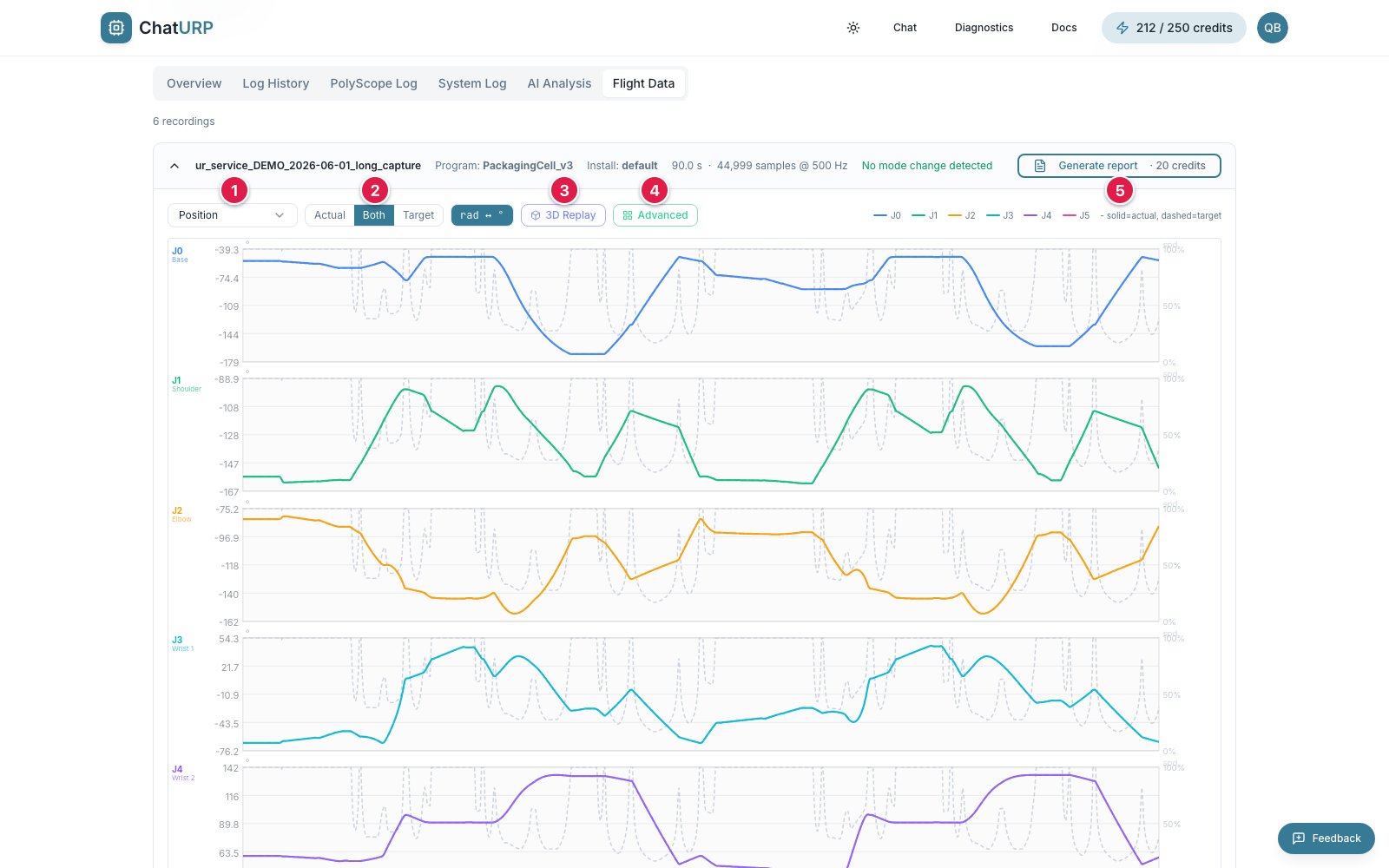 Fig. D-11: Flight Data tab with one recording expanded.
- Metric selector — pick the signal to plot.
actual/both/targettoggle.3D Replay— opens the replay panel.Advanced— opens the wider page with the program tree side-by-side.Generate report— builds the Performance report.
Each recording is a collapsible card, headed with its duration, sample count and rate. Inside the card:
- The metric selector picks the signal, grouped as Joints (position, velocity, acceleration, current, torque, temperature, voltage), TCP (pose, speed, force) and Controller. A signal the capture doesn't carry is marked (not in capture).
- The
actual/both/targettoggle switches between measured and commanded values, and only appears when the capture holds both. - The chart plots the six joints (or six TCP axes) over time. Coloured bands show safety-mode changes; a marker calls out the moment the fault occurred. Zoom in and
Reset zoomappears. - A unit toggle swaps radians for degrees (and °C for °F) where both make sense.
3D Replayopens a floating 3D robot-arm view that scrubs through the recording with play controls and a time slider.
Generate report appears on the long service capture (always) and on incident recordings of at least 50 seconds — shorter snapshots don't hold enough data for a meaningful report.
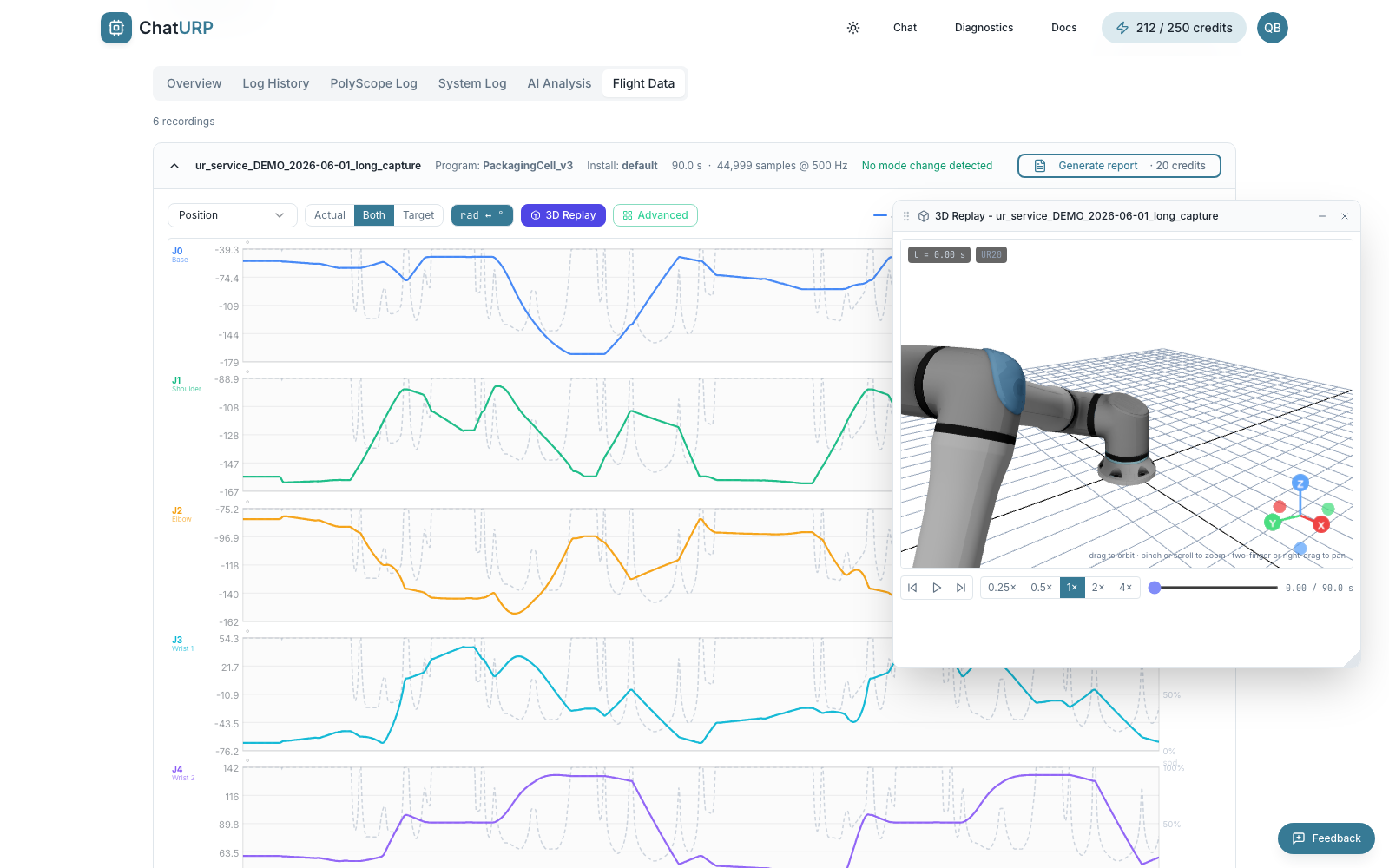 Fig. D-12:
 3D Replay floating over the charts, with play controls, speed presets and the time slider.
Performance report#
The Performance report turns a recording into a structured, plain-language health check of the program and installation — the kind of write-up a Universal Robots engineer produces after a performance review, generated from your own data in seconds.
Generate it from the Flight Data tab: click Generate report on a recording. It costs 20 credits and requires a Pro subscription. The report opens as a full page with a Print / PDF button. If the AI sections could not be produced, the report still opens without them, and regenerating the same recording is free.
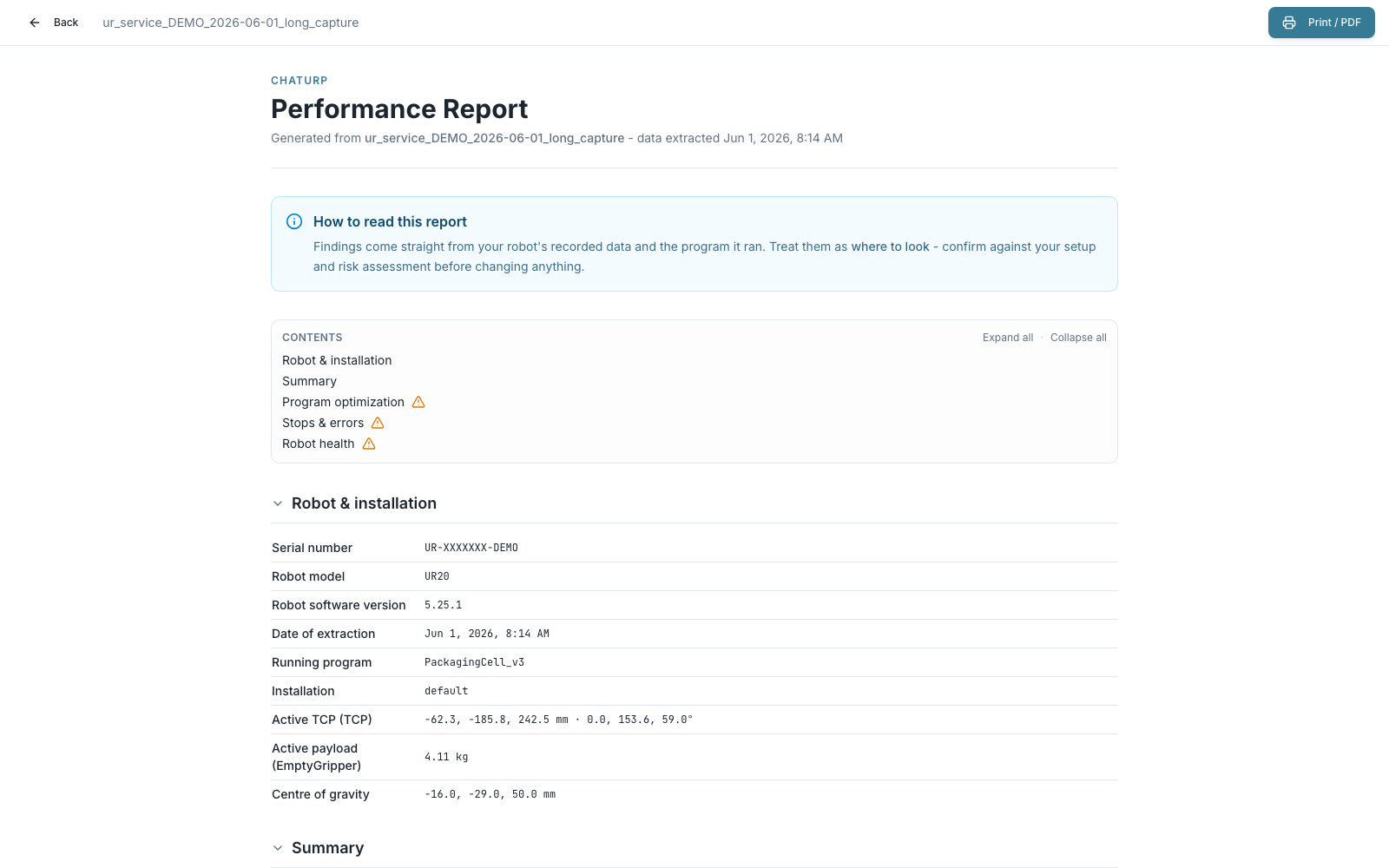 Fig. D-13: Performance report — cover, jump index, and installation overview.
What it contains:
- Summary (AI) — a short, AI-written reading of what the findings add up to and up to four actions to take first, each pointing at the finding it comes from.
- Robot & installation — serial, model, software version, running program, TCP and payload (in mm), and any customer-installed URCaps.
- Summary — a checklist of every check with a one-line result (e.g. Missing use of blends — 10 found, Safety violations — 21 last month) and a severity icon: no findings, best practice, potential improvement, or improvement required.
- Program optimization — missing blends, overlapping blends, moves that never reach their set speed, too many threads, threads that never pause, and continuous checks or process moves that stop the robot abruptly.
- Program & installation review (AI) — an AI-written checklist of program quality (naming of taught positions and variables, folders, nesting, threads, comments, script usage, repeated code, unreachable steps) and installation setup (TCP, payload, I/O naming), with a verdict, the evidence and a recommendation each, plus anything else the model noticed. Where it cites a count, that count is computed by us rather than by the model — except for the naming and repeated-code rows, where nothing countable exists and the review says how much of the program is affected in words. It does not judge your safety configuration: that needs the cell, the people in it and the risk assessment, none of which is in a program file.
- Stops & errors — safety violations, trajectory deviations, and faults over the last day / month / four months, from the event log.
- Robot health — the payload check (is the configured weight and balance right?), a whole-arm version of the same, and a joint-temperature overview.
Each finding explains what was observed, why it matters, and what to do about it, with the supporting table or chart.
Seeing it in the program#
Wherever a finding points at a place in the program, the row names the actual node (for example ↳ If start_signal≟True) and offers a Show in program link. Expanding it draws that part of the program tree, exactly as it looks on the pendant, with the line highlighted.
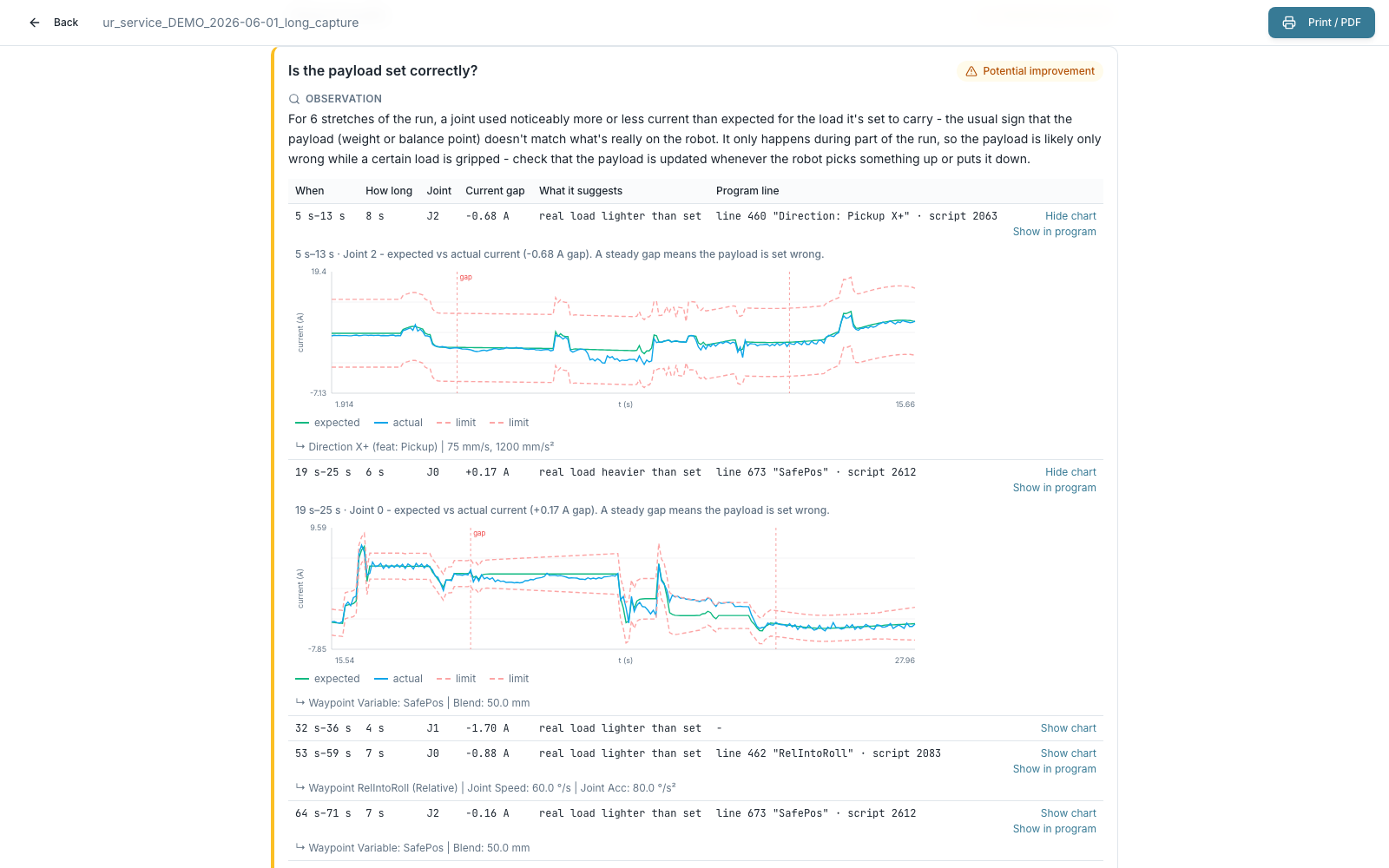 Fig. D-14: A finding table — every row names the program line it points at and offers
 Show chart and Show in program.
On screen the report is interactive: use the Contents index to jump to a section, and collapse sections you don't need. The printed PDF always contains everything, fully expanded, so it stays a complete document to keep or share.
Advanced analytics#
Each recording card has an Advanced button. It opens a wider page that pairs the telemetry chart with the program tree, with the cursor synchronised to the exact PolyScope line that was running at each instant.
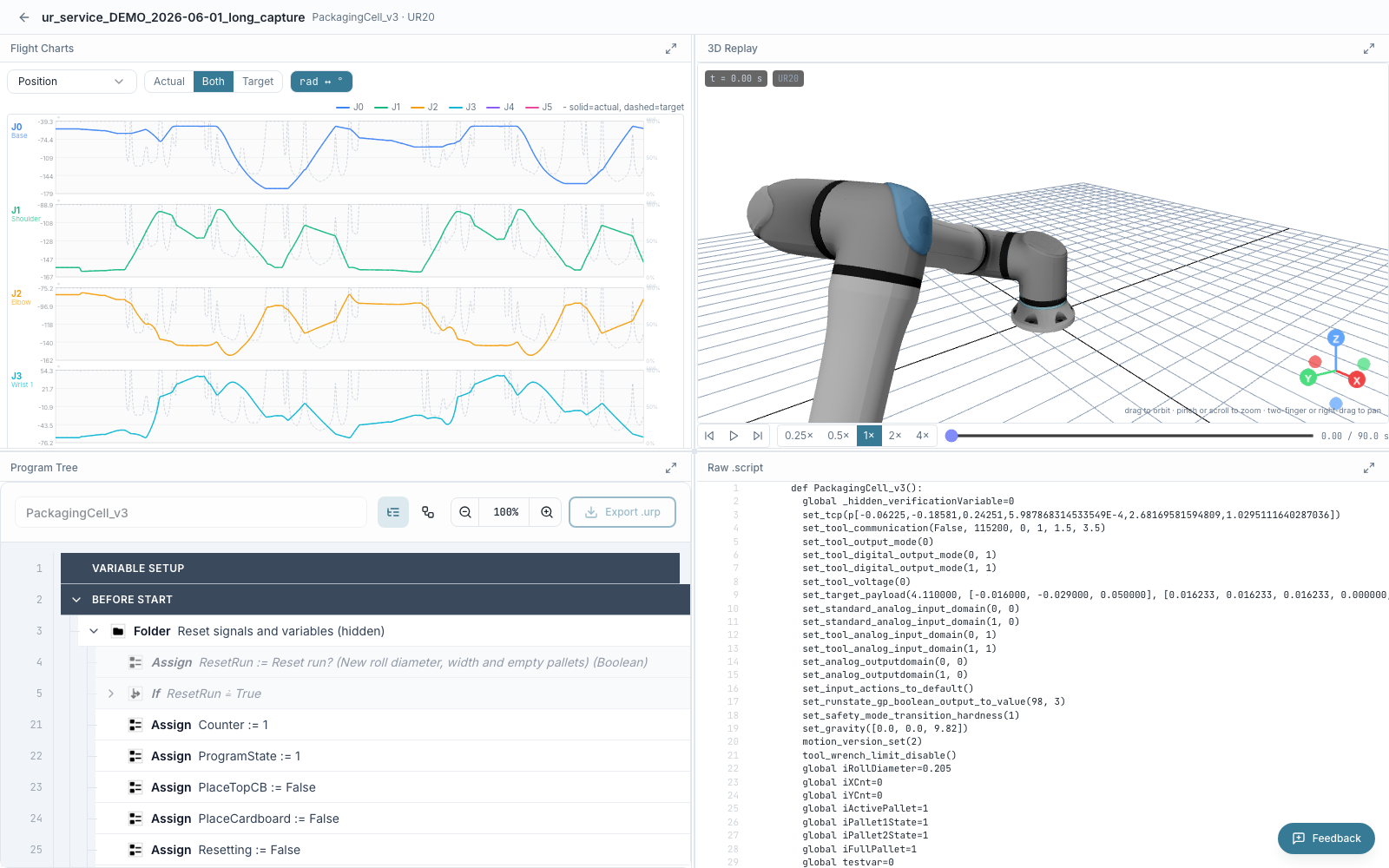 Fig. D-15: Advanced analytics page — flight charts, 3D replay, program tree and the generated script side by side.
- The chart and the program tree share a hover crosshair.
- Hovering a sample highlights the PolyScope line that the controller was executing at that timestamp.
- The program tree comes from the
.urpembedded in the support archive, so the line mapping is exact rather than approximate.
It opens in a new tab and reloads the file from this browser's cache, so it is unavailable for a loose multi-file upload or in private browsing — the page tells you rather than dead-clicking.
Recent files cache#
The drop zone keeps a list of the last ten files you analyzed, under a collapsible Recent files header carrying the count.
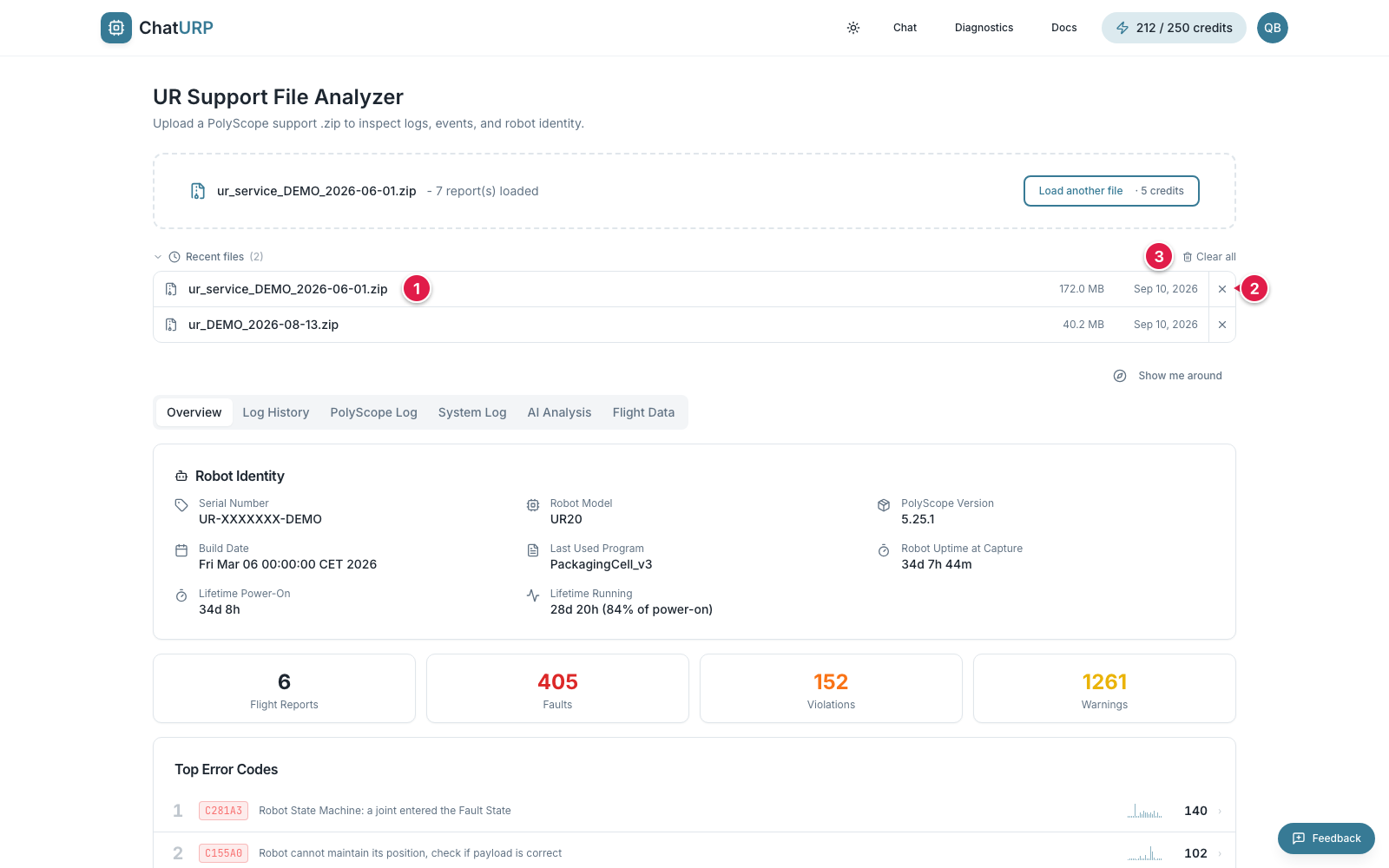 Fig. D-16: Recent files list with reload, remove, and
 Clear all controls.
- Click a row to reload that cached file.
×to remove a single entry.Clear allto wipe the whole cache.
- Each row shows the filename, size and date.
- Reopening a file from here is free, and so is re-uploading it from disk — the charge is keyed to the file's content, not to the click.
- The cache lives in your browser and is not synced to the cloud. Entries beyond the tenth are pruned automatically, oldest first.
- Logged-out visitors never touch local storage.
If your browser clears site data, or you switch browsers or devices, the cache is gone — re-upload the file. The original .zip on disk or USB is never modified.
Privacy#
- Browsing a support file's logs, events, identity, and telemetry runs on your device. The support file itself is never uploaded to us.
- Generating a Performance report or opening Advanced Analytics sends the program, the installation, and the telemetry needed to build them to our service. We use it only to produce the result, and we do not store the support file.
- Running an AI analysis sends the log entries you selected — the window, logs and severities on screen — plus the robot's identity (model, serial number, software versions, installed URCaps) and the problem description you typed, to our service and on to our AI provider. Logs only: the program and installation are not included. Our provider holds what we send for up to 30 days in its abuse-monitoring logs. We do not store the prompts or the log rows we sent.
- The analysis we produce is stored on your account, so a run you paid for can be re-opened from any device. It is kept until you delete your account, is included in your data export, and goes with the account when you delete it. A run that failed leaves a record of the failure with no result in it.
- The cached files in the Recent files panel, and a copy of the analyses you have paid for, live in your browser's local storage. Clear them from the same panel, or by clearing site data.
Full detail is in the privacy policy.
See also: export your program back to .urp.