Chat#
The chat is where you write prompts, read the generated program, edit it, and export a file you can load on a robot. This page walks through every region of the editor.
Layout overview#
The chat splits into four regions.
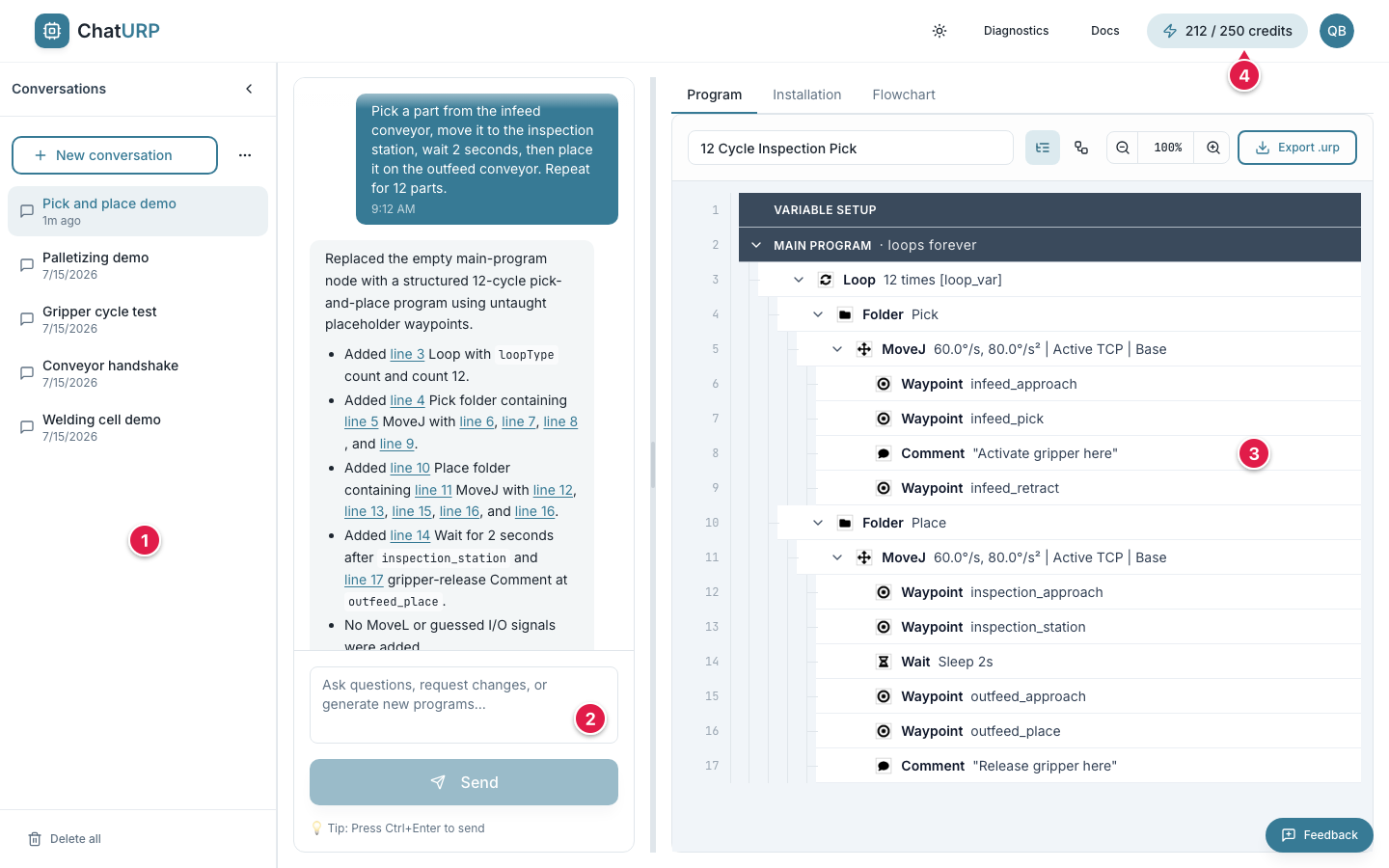 Fig. C-1: Chat with a conversation loaded. Numbered overlays mark the four regions.
- Conversation sidebar.
- Chat and prompt area.
- Program panel.
- Top bar.
| # | Region | What it does |
|---|---|---|
| 1 | Conversation sidebar (left) | Lists your saved conversations. Collapses to a narrow icon rail. |
| 2 | Chat and prompt area (centre) | Holds the message history and the prompt input. |
| 3 | Program panel (right) | Program, Installation and Flowchart tabs, the program name and the export button. |
| 4 | Top bar | Your remaining credits, the account menu, Take the tour, and links to Diagnostics and Docs. |
The split between the chat panel and the program panel is draggable. Grab the vertical handle between them to resize.
On a tablet the sidebar collapses to a narrow strip and expands as a slide-out drawer when you tap it. On a phone the editor switches to a tabbed layout — Conversation and Program — and the sidebar opens as a drawer.
A Feedback button sits in the bottom-right corner on every page while you are signed in; see Feedback.
Conversations#
A conversation is one chat thread tied to one program. Every prompt you send and every program version the AI produces lives inside the active conversation.
Each conversation is also tied to one robot generation. You choose PolyScope 5 or PolyScope X before the first prompt, and it cannot be changed afterwards — see PolyScope X programs.
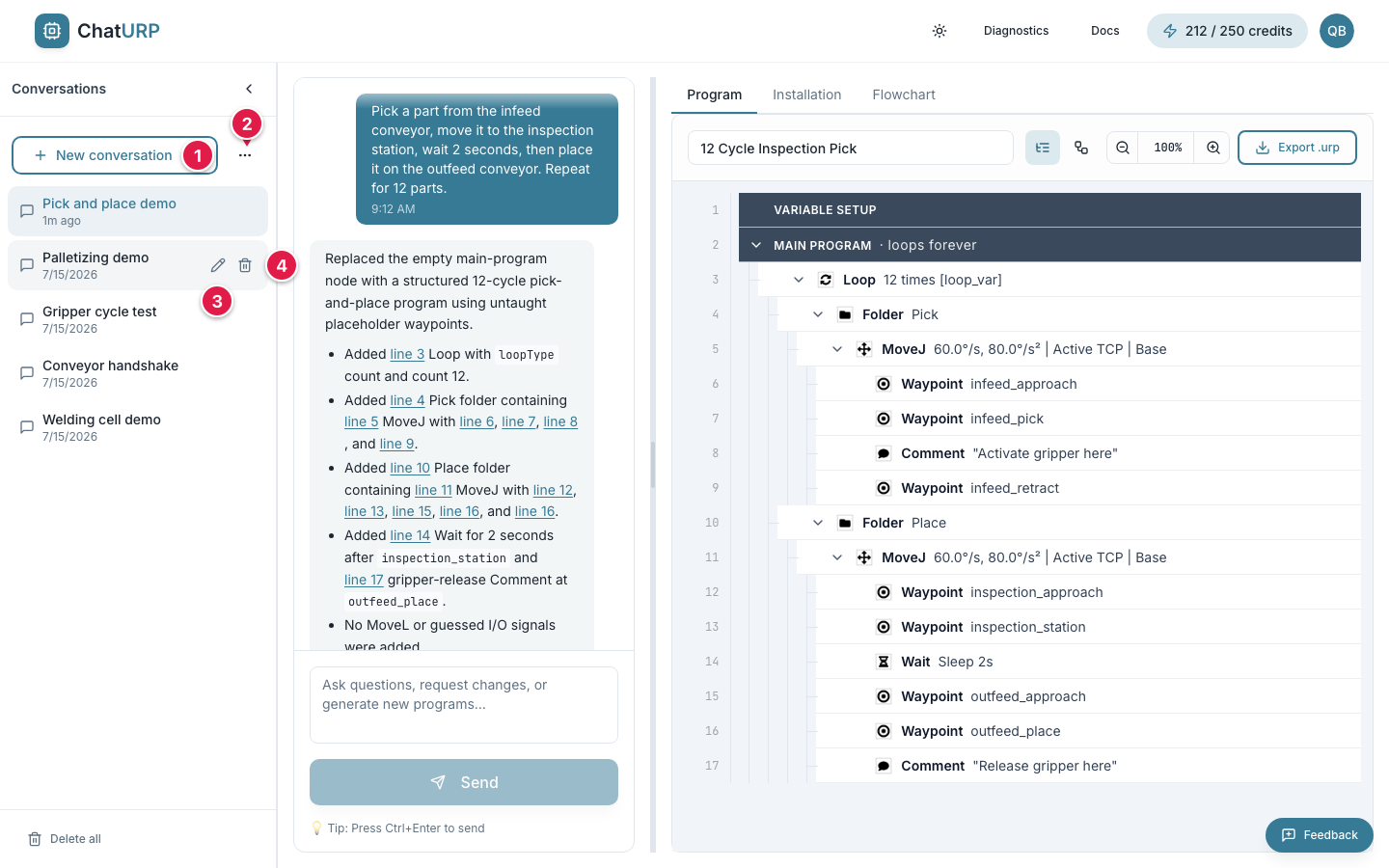 Fig. C-2: Conversation sidebar with five sample conversations; the second row is hovered.
New conversation— start a new chat.More actionsmenu — bulk select, delete all.- Rename pencil (shows on hover).
- Delete trash (shows on hover).
Create a conversation#
Click New conversation at the top of the sidebar. The editor clears to an empty state. The conversation is not saved until you send your first prompt or import a program — at that point it gets a name derived from the prompt text (an imported program names the chat after itself). You can also just type a prompt without picking a conversation; one is created for you.
Rename#
Hover a row. Click the pencil icon. Type a new name and press Enter to save or Escape to cancel.
Delete#
- Single conversation: hover a row, click the trash icon, confirm.
- Several at once: open the
More actionsmenu (three dots), chooseSelect conversations, tick the rows you want, then clickDelete (N). - All conversations: click
Delete allat the bottom of the sidebar.
Deletes are permanent. There is no undo.
History inside one conversation#
Every accepted program is stored as a separate version. When a conversation has more than one version, a history bar appears above the program.
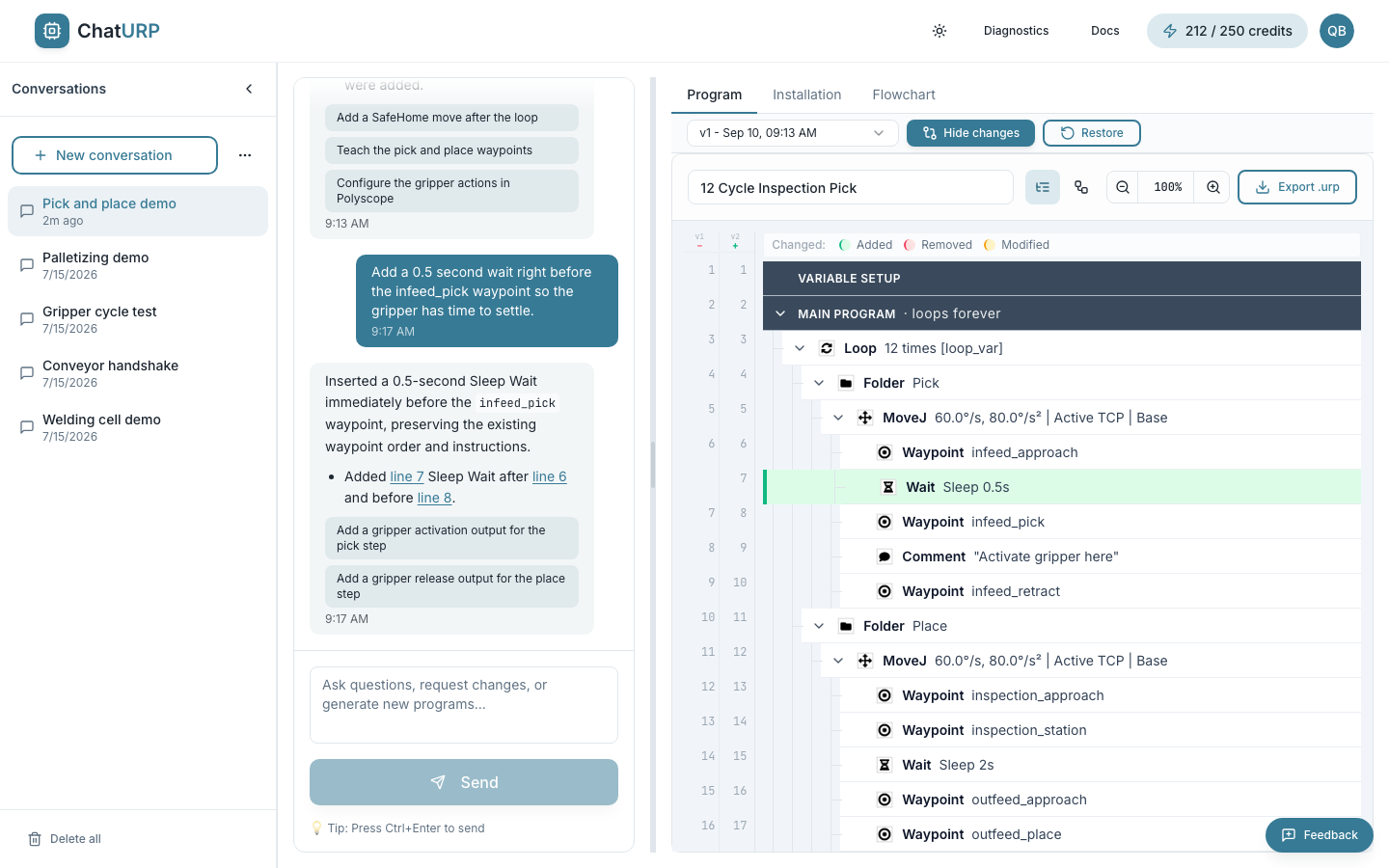 Fig. C-3: The history bar after two accepted versions —
 v1 selected and the diff turned on, so the button reads Hide changes.
- Use the dropdown to pick an earlier version —
v3 - Current (latest)down to the oldest, each stamped with the time it was made. The tree switches to that snapshot. - Click
Show changesto overlay a diff against the current version. Click it again (Hide changes) to drop back to the plain view. - Click
Restoreto make the selected version the new baseline. Restoring does not delete later versions — they remain in the dropdown.
A restored version is held in the editor until you send the next prompt or export. The AI is told about the restore so its next reply treats the restored snapshot as ground truth.
Writing prompts#
The prompt area sits at the bottom of the chat panel.
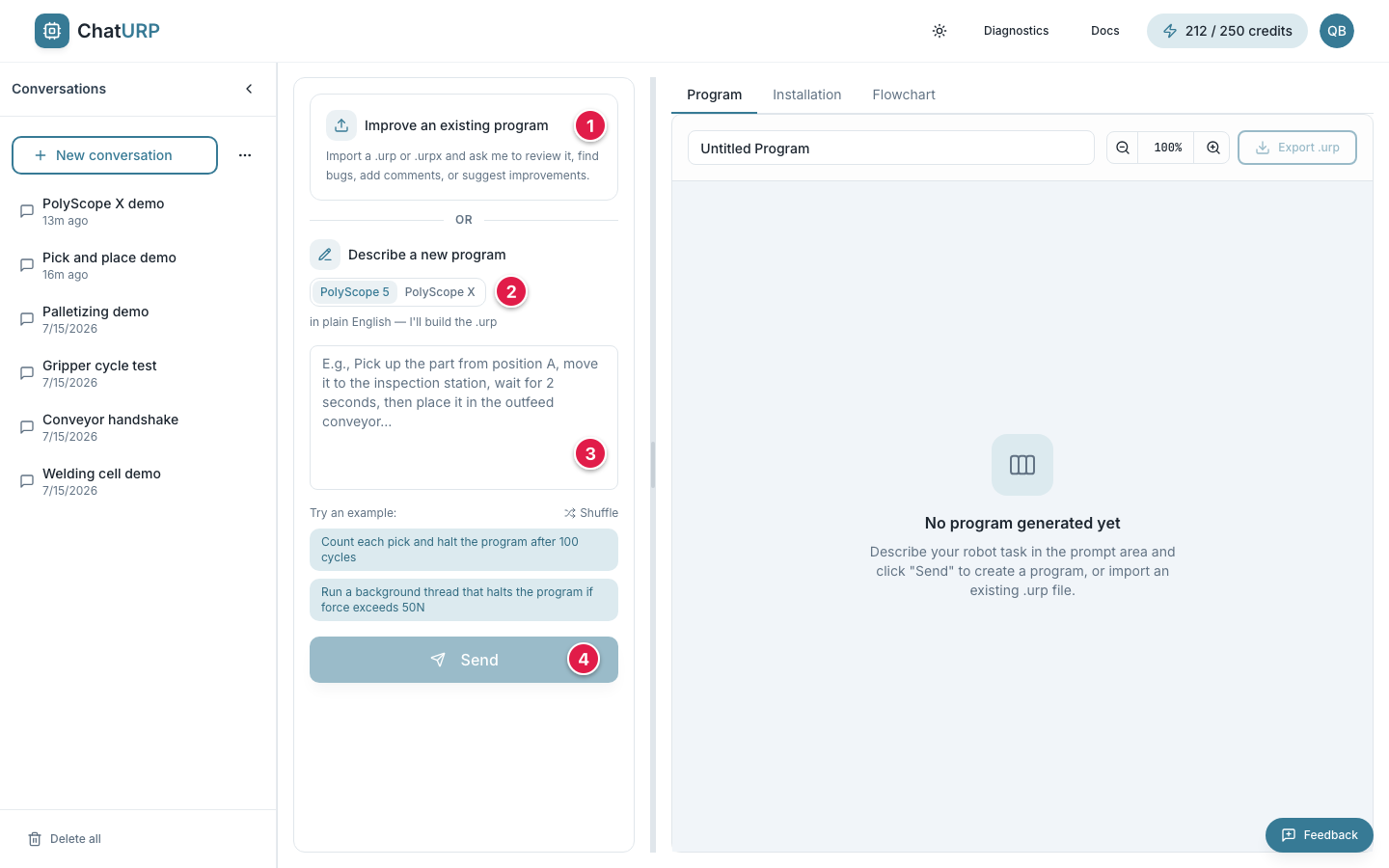 Fig. C-4: Prompt area in its empty state.
Improve an existing program— import a.urp,.urpxor support.zipfor the AI to review, annotate or fix.PolyScope 5/PolyScope X— the robot generation a new program is for.- Prompt textbox — describe the task.
Send(or pressCtrl+Enter/Cmd+Enter).
On a fresh conversation the empty state offers the two ways to start: import an existing program with the card at the top, or describe a new one in the box below it. The PolyScope 5 / PolyScope X toggle under Describe a new program decides which format the chat produces; once the conversation exists it stops being a switch and just shows which generation this chat is for.
Placeholder hints and suggestions#
On a fresh conversation the prompt box shows a long-form placeholder describing a full pick-and-place task. After your first message the placeholder becomes "Ask questions, request changes, or generate new programs…" — use the chat for follow-ups rather than starting over.
The empty state also shows example prompts under Try an example:. Click any of them to load the text into the prompt box; click Shuffle to draw a different pair. Once a program is loaded, the suggestions change to review and annotation asks under Ask me to… — "add a comment to every move", "find bugs", "explain what this does" — since analysing an existing program is one of ChatURP's strongest features.
The AI can generate the full range of program nodes (moves, waits, loops, conditionals, I/O, palletizers, force mode, threads, …); specialist tooling like grippers or welders is added as comment placeholders for your URCap to fill in.
Two things appear in the replies themselves:
- Follow-up suggestions — short buttons under an answer. Click one and it goes into the prompt box, ready to edit or send.
- Citations — where the AI refers to a step it writes it as a
line Nbutton. Click it and the program tree scrolls to that step and highlights it, even if the line has moved since.
Submitting#
Click Send or press Ctrl+Enter (or Cmd+Enter on macOS). The button changes to Thinking… and the chat shows a Thinking… indicator with elapsed seconds.
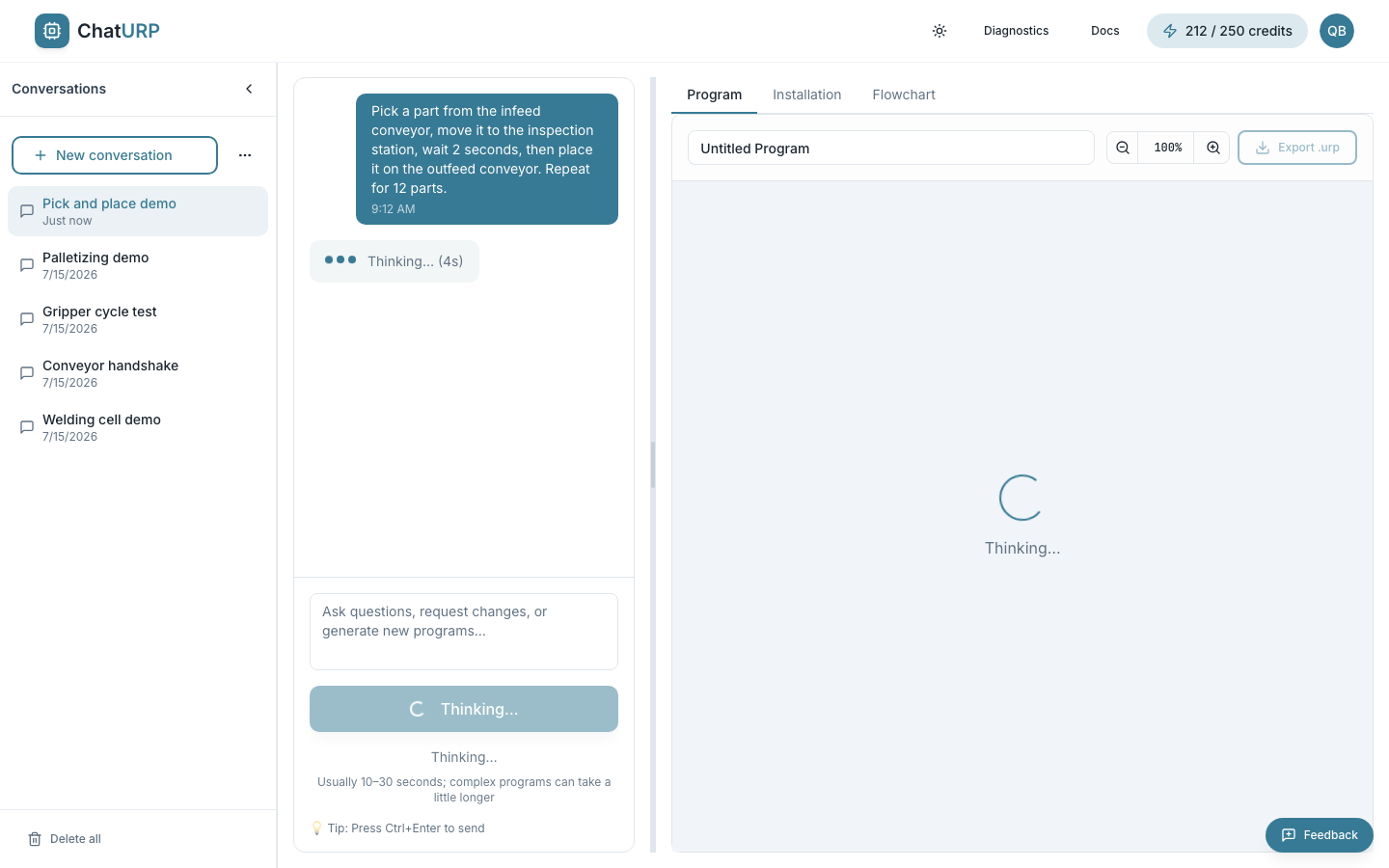 Fig. C-5: Prompt area during a generation.
Most requests finish in 10 to 30 seconds. A large one takes longer, because the turn is run in stages behind the scenes, each with its own budget — nothing is cancelled while it runs. If it is still going after a few minutes you get a Still working notice telling you the result will land here when it is done. If a stage genuinely cannot fit, the reply says so and asks you to split the request into smaller steps.
Each message you send costs 1 credit, whether the AI answers a question or edits the program.
Pending proposals#
When the AI produces a new program, a banner appears above the tree reading AI proposed: and the proposed name, with two buttons: Decline and Accept.
- The tree below shows the proposal as a diff against your current program: added rows in green, changed rows in amber, removed rows struck through in red.
Acceptmakes the proposed program the current one and adds it to the version history.Declinediscards the proposal. For an edit turn the AI's reply describing the change is removed with it, so the conversation does not carry a change that never happened, and the AI is told you declined when you next write.
You cannot start a new generation or import a file while a proposal is pending. Accept or decline first.
Model selection#
ChatURP picks the AI model on the server. There is no user-facing model selector and no reasoning knob, and every request costs the same flat 1 credit.
Out of credits#
If you are on the free tier and have run out of credits, a note reading "You're out of credits" appears above the Send button, with an Upgrade to keep generating link to the billing tab. The Send button stays disabled until you subscribe to a paid plan — either Starter or Pro (free credits are a one-time allowance and do not refill).
Reading the program tree#
The Program tab shows the program as a nested tree. Each row is one step the robot will run. Indentation shows the structure, exactly like the PolyScope program tree on the robot pendant.
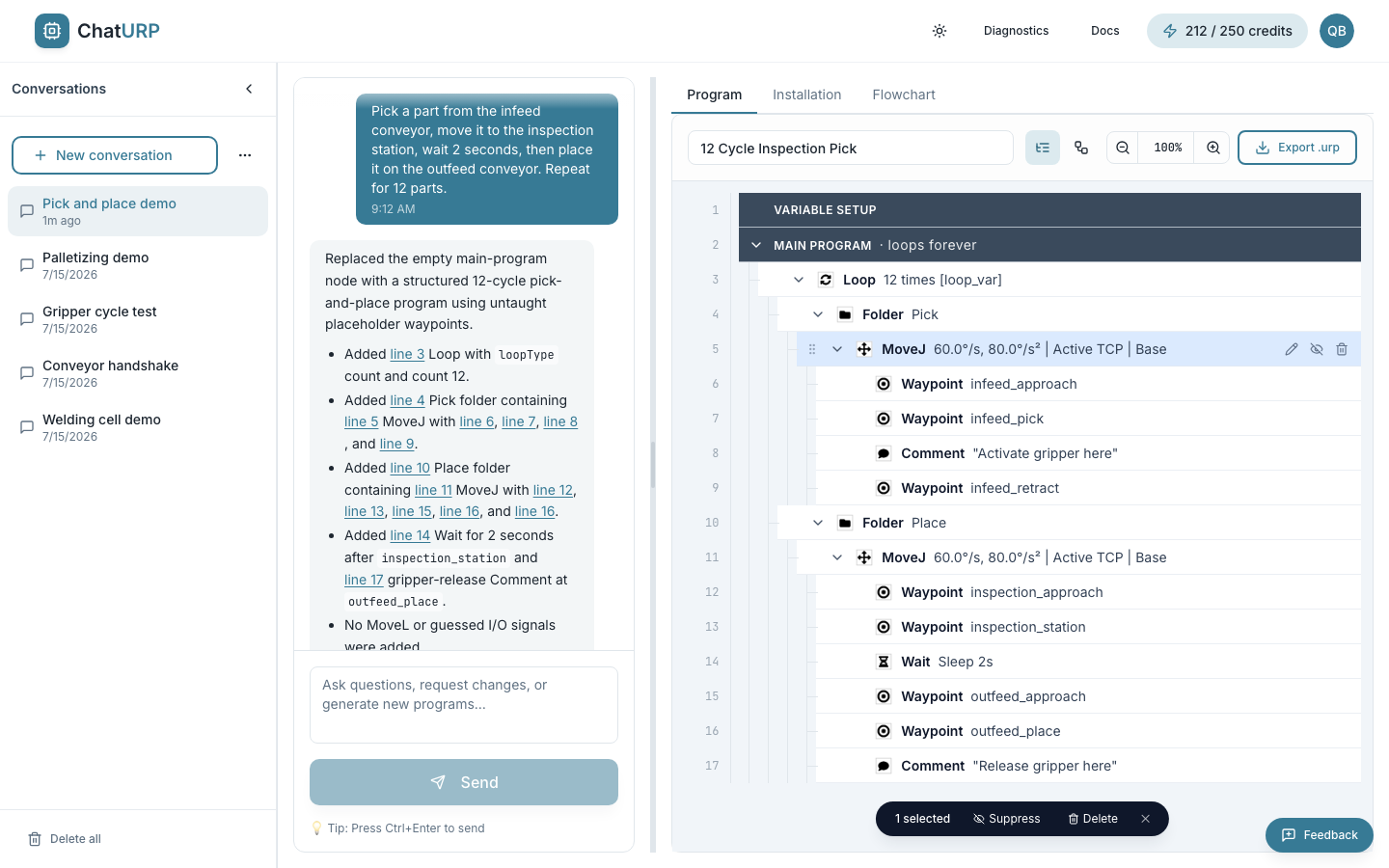 Fig. C-6: Program tree with a MoveJ row selected — its per-row actions on the right, and the
 1 selected pill at the bottom of the panel.
Node types#
The icon and colour of each row reflect what kind of step it is — a move, a wait, a loop, a conditional branch, a popup, a subprogram, an I/O toggle, and so on. The same set of operations you can pick from on the PolyScope pendant.
Rows start expanded. Container rows have a chevron on the left — click it to collapse or expand. Rows suppressed in PolyScope render dimmed and start collapsed.
Selection and rename#
- Click a container row to collapse or expand it. Clicking a plain step does nothing on its own.
Cmd-click (Ctrl-click on Windows) orShift-click rows to select several at once.- The program name at the top of the panel is editable. The new name is what shows on the robot pendant after export. It is read-only while a proposal is pending or while you are viewing a restored older version.
- Rename groups or sub-programs by asking the AI in the chat ("rename Folder_1 to Pick"). Operations that have an edit dialog (pencil icon on the row) can also be renamed inside that dialog.
Per-row actions#
Hover any non-phase row to reveal action icons on the right edge:
- Pencil — open the per-operation edit dialog. Most operation types have one (Move, Waypoint, Wait, Loop, If, Set, Popup, Palletizer, Force, Thread, …).
- Eye / eye-off —
SuppressorUnsuppressthe operation (kept in the program, but skipped on the robot, the same as suppressing it on the pendant). - Trash — delete the operation. A toast confirms it and offers
Undowhile the change is still queued; once it has saved, the toast points you at the version history instead.
You can also drag a row to reorder it. Drop after another row to make it a sibling, or drop onto a container to move it inside.
Editing several rows at once#
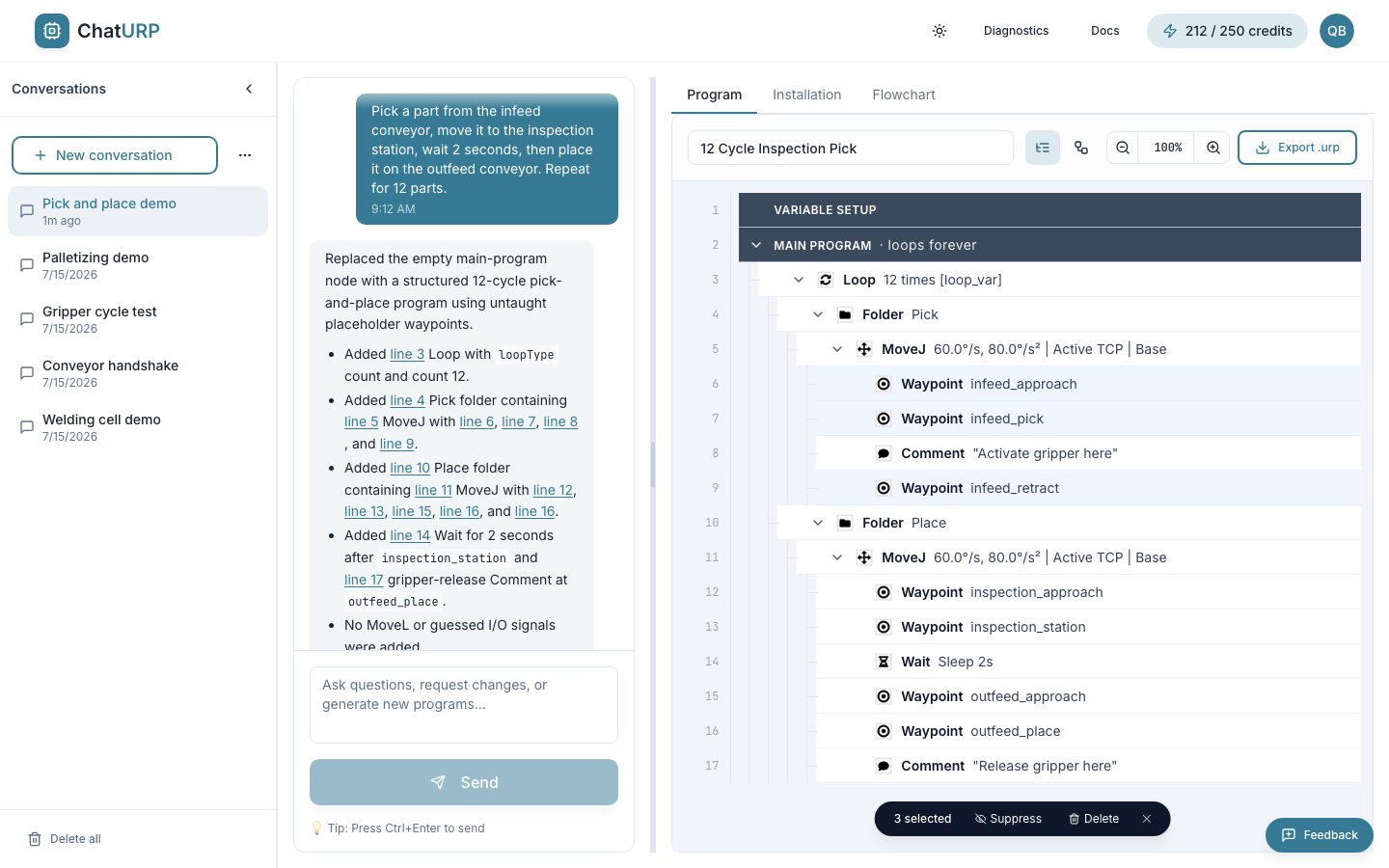 Fig. C-7: Multi-select — the floating pill acts on every selected row.
With more than one row selected, a pill floats at the bottom of the panel: N selected, Suppress, Delete, and ✕ to clear the selection. Rows that hold the program together are skipped rather than broken — a Switch's Default case, a palletizer's internal structure, an ElseIf or Else (toggle those from their If, so the whole chain stays consistent) — and the confirmation says how many were protected.
Edits save automatically with a short delay. The header shows N pending while edits are queued, Saving… while they flush, and Save failed - retry — click it to try again — if a save did not land.
Zoom#
The zoom controls in the panel header zoom the tree between 50 % and 200 %. The reset button (the percentage label) returns to 100 %.
Flowchart view#
The Flowchart tab draws the same program as nested blocks with arrows for control flow.
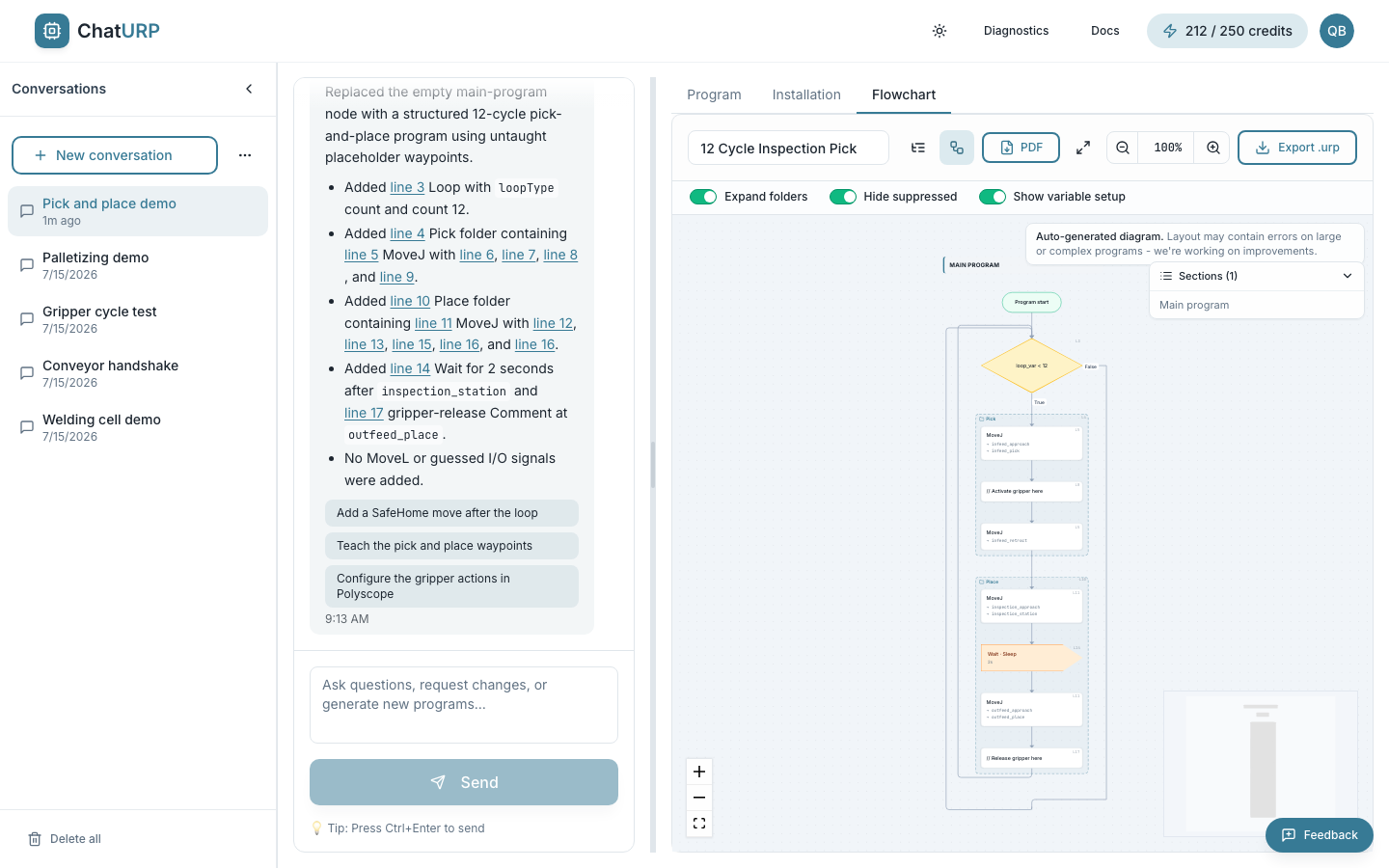 Fig. C-8: Flowchart view of the same program shown in Fig. C-6.
Use it when:
- You want to share the program logic with someone who does not read PolyScope trees.
- You need a printable summary — the flowchart has a
PDFexport button. - You are reviewing a long program and want to scan the overall shape before diving into rows.
Three toolbar switches control how much the chart shows, and all three start on:
Expand folders— draw what is inside each folder. Off, a folder is one collapsed block.Hide suppressed— leave out steps disabled in PolyScope. Turn it off to draw them at reduced opacity instead.Show variable setup— show the variable table as its own group. Usually a long list of trivial assignments; turn it off to fold it away.
On a phone the three collapse into a single View (n/3) dropdown. Parameter lines (a move's speed and waypoints, a wait's condition, an output's value) are always shown.
Alongside the toolbar there is a section index for jumping between subprograms and threads, a minimap, and a fullscreen button for reviewing a long program without the chat beside it.
PDF opens an Export PDF dialog: Orientation (Auto, Portrait, Landscape — Auto picks whichever needs fewer pages per section), Page size (A4 or A3), and Quality (Screen (150 dpi) or Print (300 dpi)).
The flowchart view — and its PDF export — requires a paid plan (Starter or Pro). Free accounts see a locked preview with an upgrade prompt.
Installation tab#
A .urp only describes the motions; the TCP, payload, mounting, I/O naming and safety limits live in a matching .installation file. Attach it to the conversation and the AI reads it, the tree shows the I/O names from your installation next to the raw pins, and the export ships both files paired.
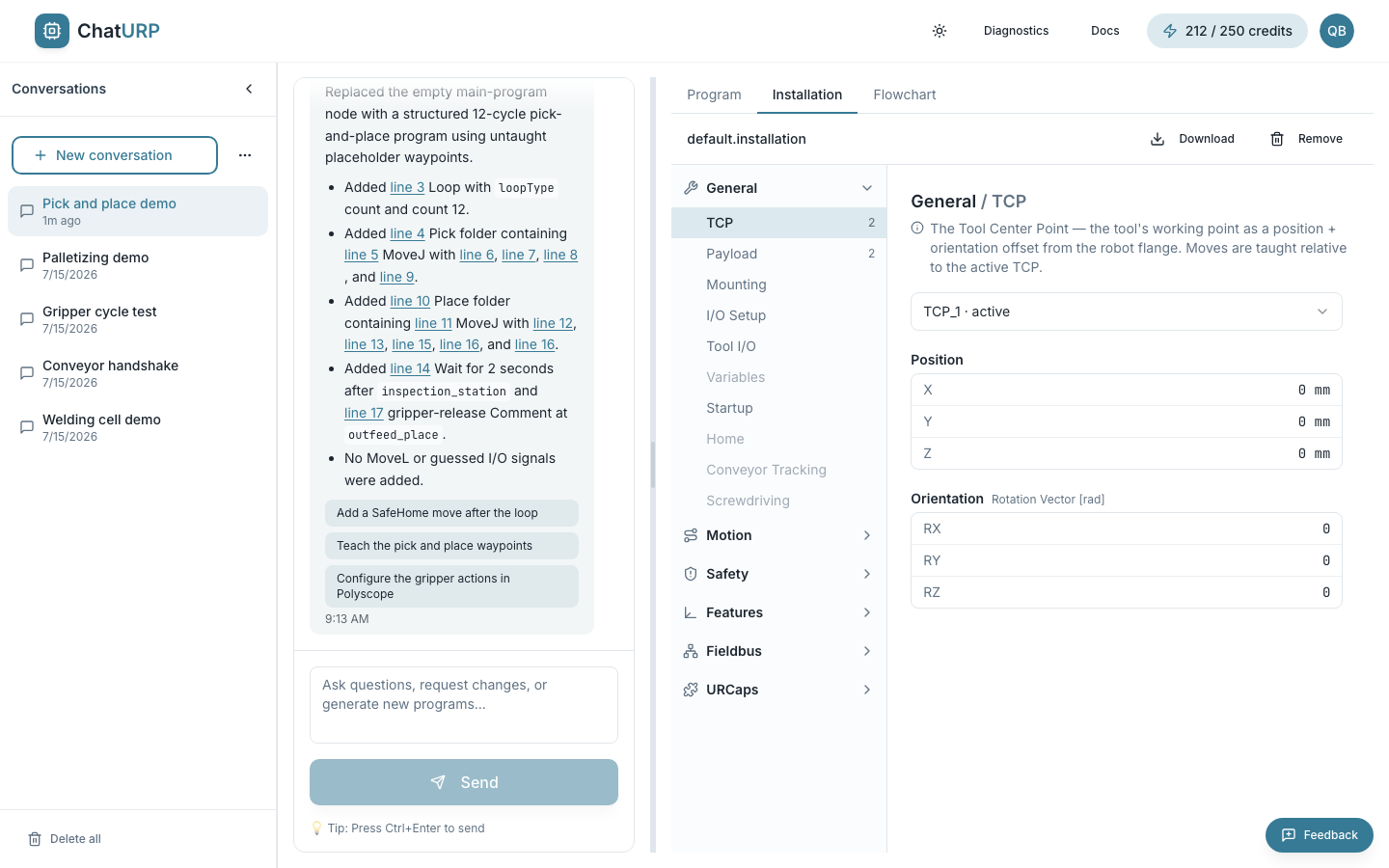 Fig. C-9: Installation tab with a
 .installation attached, open on General → TCP.
- Attaching. Open the
Installationtab, pick the.installationfile, optionally add its companion.variablesfile, and clickAttach installation. Importing a support.zipcan do this for you: if the program you picked references an installation that shipped in the same zip, it is attached automatically. - Reading it. The attached installation renders read-only, in PolyScope's own layout —
General(TCP, Payload, Mounting, I/O Setup, Tool I/O, Variables, Startup, and so on), thenMotion,Safety,Features,FieldbusandURCaps. Sections the file does not use are greyed out. - Managing it. The header shows the attached filenames with
Download(the installation as it stands now, including accepted AI changes) andRemove. - Proposed changes. When the AI wants to change the installation — a new TCP, a renamed I/O — a
Proposed installation changesbanner lists each field with its old and new value, and an amber dot appears on the tab so you notice it from theProgramtab. Accept or decline it there. When the change is part of a program proposal (a rename that has to be applied to both halves), the banner says so and you approve it in the chat instead; the only button here isDecline.
The Installation tab is not shown on a PolyScope X conversation — a .urpx carries its application settings inside the bundle.
PolyScope X programs#
A conversation is for one robot generation, chosen with the PolyScope 5 / PolyScope X toggle before the first prompt and fixed from then on. Importing the wrong format into an existing chat is refused with a message telling you to start a new one — the format is stamped on the conversation and cannot be swapped.
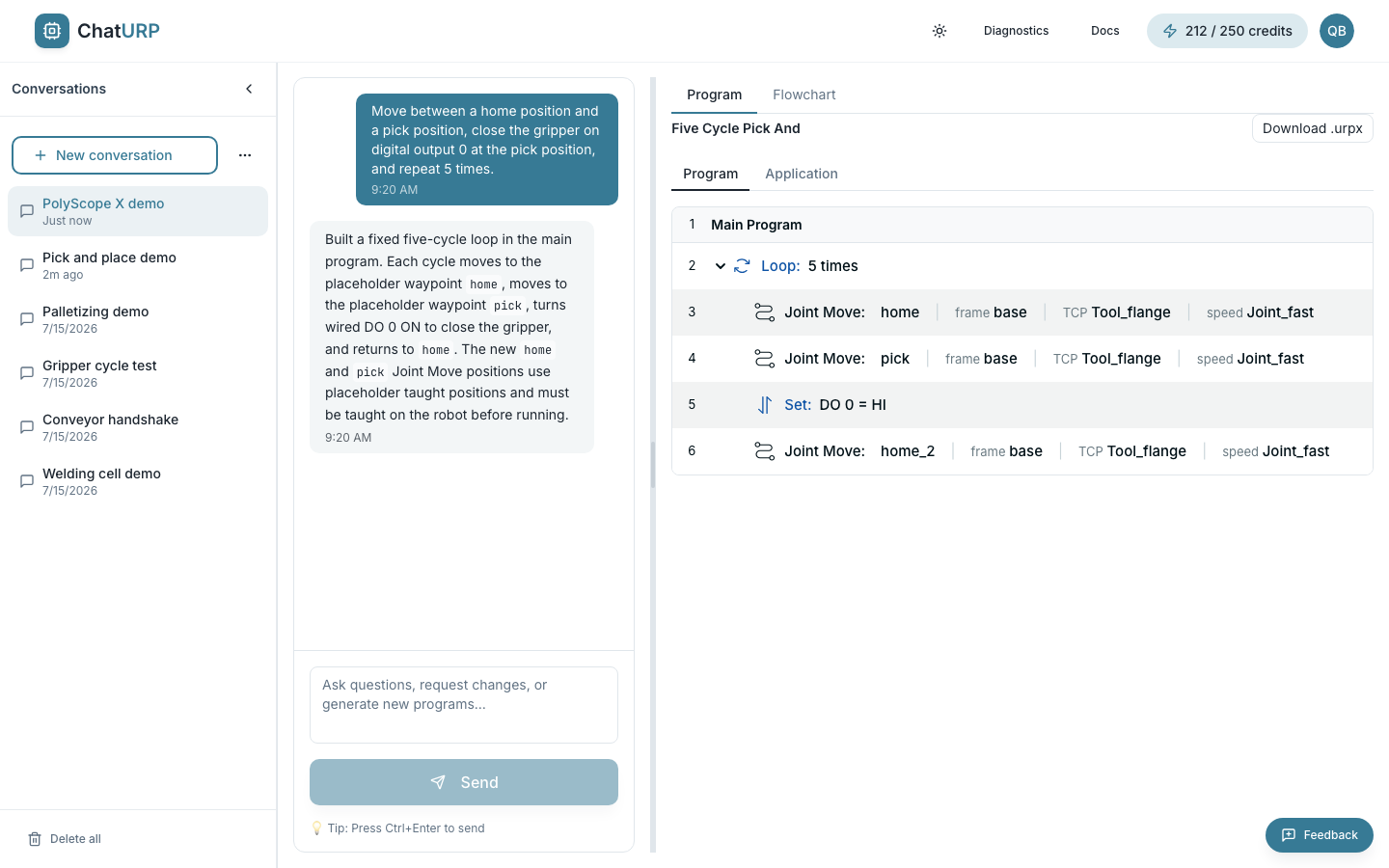 Fig. C-10: A PolyScope X program —
 Program and Application sub-tabs, Download .urpx top right.
A PolyScope X conversation renders the .urpx the way the pendant does:
Program— the program tree.Application— the application settings that ride inside the bundle (frames, TCPs, payloads, I/O, and so on), as tiles you click into.Operator screen— the configuration and status items the program file defines. This tab only appears when the application carries operator-screen content; the program in Fig. C-10 has none, so it is absent there.
Download .urpx (top right) gives you the whole bundle as one file. While a proposal is pending the button reads Download proposed .urpx and the file is named <name> (proposed).urpx, so a downloaded proposal can never be mistaken for your accepted program.
The Flowchart tab works on PolyScope X too. The Installation tab does not appear, as described above.
Importing an existing program#
Click Improve an existing program in the empty state to load a program from disk.
ChatURP accepts three kinds of file:
- A
.urpfile (the format PolyScope 5 and CB-series PolyScope save on the robot). - A
.urpxfile (PolyScope X). - A
.zipsupport file generated from the pendant. ChatURP scans the zip, shows a searchableChoose a programlist of every program inside, and imports the one you pick — together with its installation, if that shipped in the same zip.
Importing a program costs 1 credit and is saved straight away: the conversation is created, named after the program, and the program is stored as its first version. Nothing is lost if you reload the page.
Two things to know:
- A file has to match the conversation's robot generation. A
.urpxinto a PolyScope 5 chat (or a.urpinto a PolyScope X chat) is refused before anything is charged — start a new conversation for it. - You cannot import while an AI proposal is waiting for review. Accept or decline it first.
Programs saved by PolyScope older than 3.2 are refused, with a message asking you to re-save them in a newer PolyScope or URSim first.
Exporting back to .urp#
Click Export .urp in the program panel header to download the current program as a file you can load on the robot.
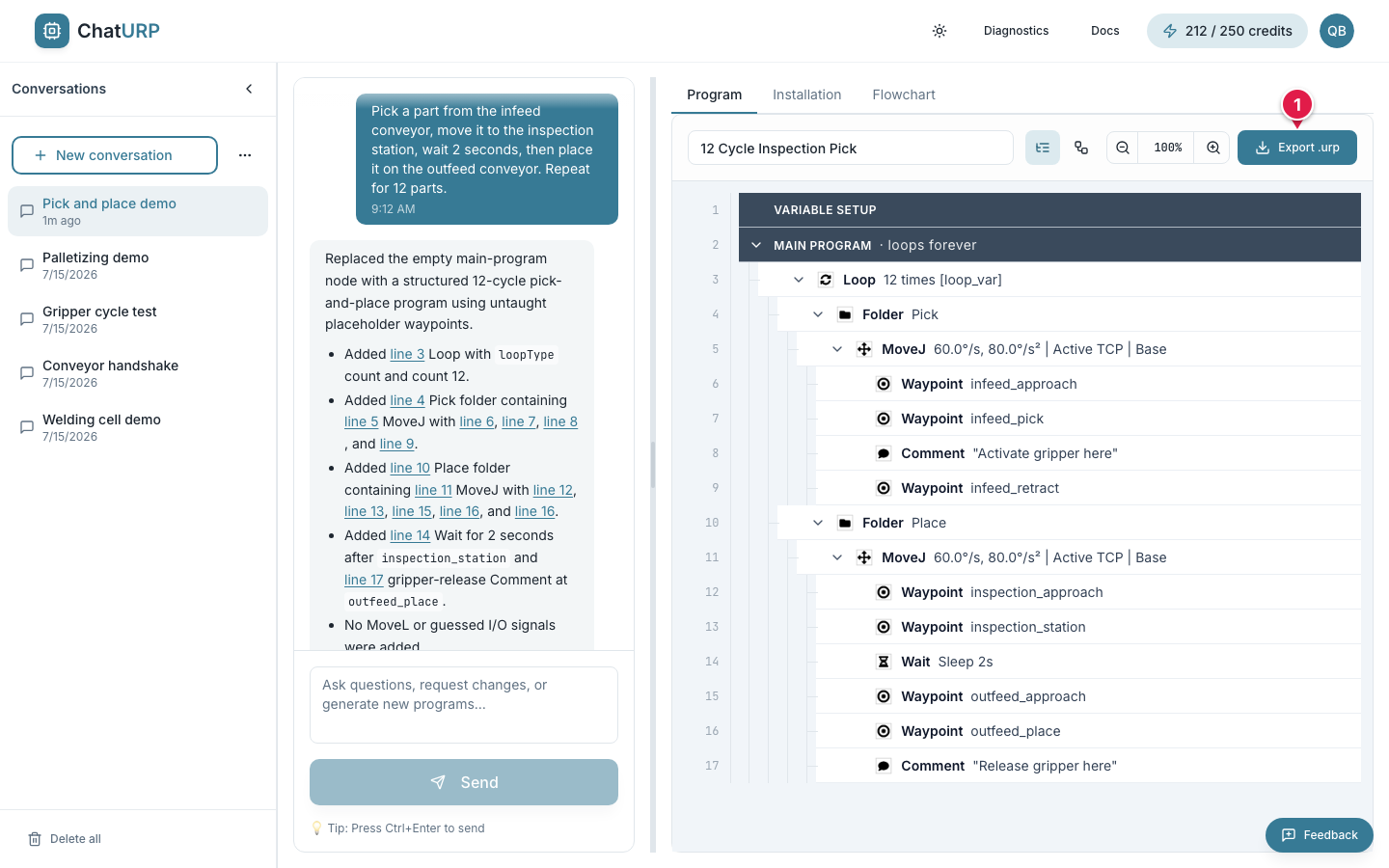 Fig. C-11: Export button location.
Export .urp— downloads the current program.
The downloaded filename comes from the program-name field at the top of the panel (spaces become underscores). If the name is blank, the file is named robot_program.urp.
If an installation is attached to the conversation, you get a .zip instead of a bare .urp. A robot pairs a program to its installation by name, so <name>_bundle.zip carries the .urp, the matching .installation, and — where there is one — the .variables file, all named so they load together. Unzip it onto the USB stick and copy all of the files across, not just the .urp. The completion toast tells you which of the two you got.
On a PolyScope X conversation the equivalent button is Download .urpx (see PolyScope X programs).
Copy the file to a USB stick, plug it into the robot, and load it from the PolyScope file menu like any other program.
Program settings#
Most rows in the tree have a pencil icon next to them when you hover. Click it to open an edit dialog for that specific node — change the parameters of a Move, the condition of a Wait, the count of a Loop, and so on. The Main Program row at the top of the tree opens the program-wide settings dialog (covered below); other rows open dialogs tailored to that node type.
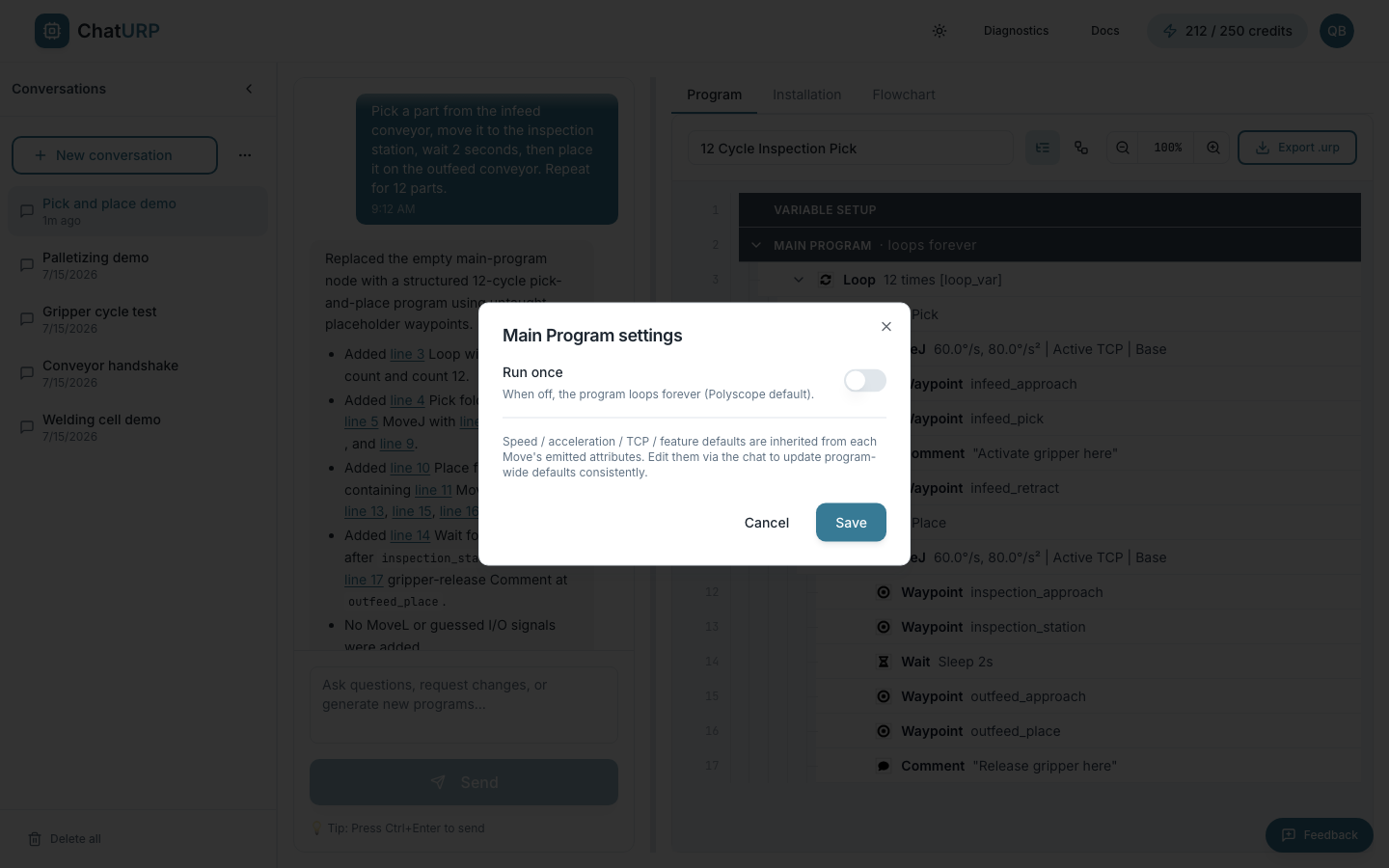 Fig. C-12:
 Main Program settings dialog — the program-wide variant.
The program-wide dialog today exposes one setting:
Run once— when on, the program runs once and stops. When off, it loops forever (the PolyScope default).
Speed, acceleration, TCP, and feature defaults are not editable here yet — they are inherited from each Move's attributes. To change them program-wide, ask the AI in the chat ("set the default joint speed to 0.5 rad/s").
Feedback#
Use the feedback dialog to report bugs, request features, or ask questions. It opens from the Feedback button pinned to the bottom-right corner of every page while you are signed in.
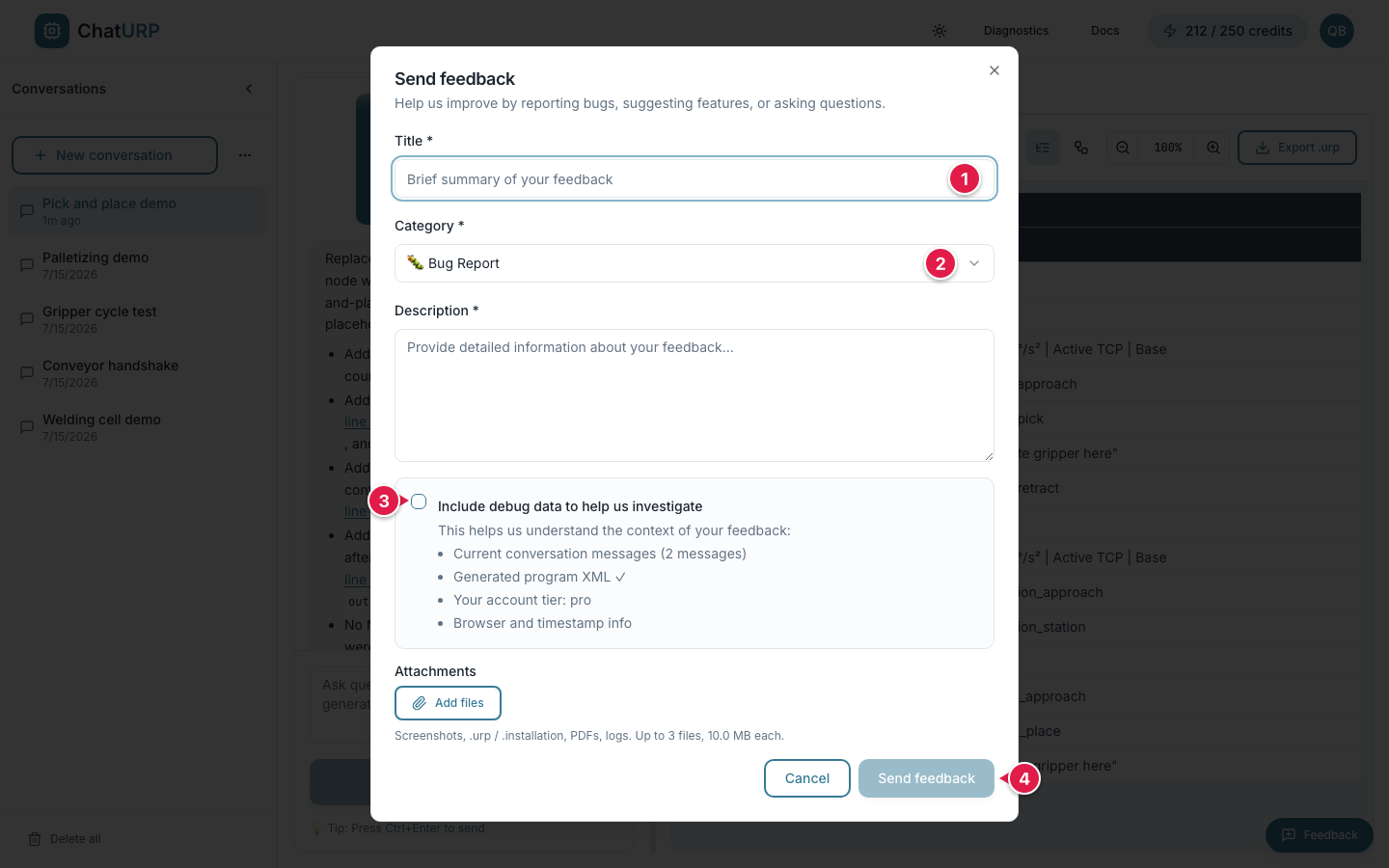 Fig. C-13:
 Send feedback dialog.
Title— one-line summary.Category— Bug Report, Feature Request, Improvement, or Question.Include debug data to help us investigate— off by default.Send feedback.
Fill in:
Title— one-line summary.Category— Bug Report, Feature Request, Improvement, or Question.Description— what you expected, what actually happened, how to reproduce.
Tick Include debug data to help us investigate to attach the current conversation, the current program, and your subscription tier. The box is off by default, so nothing about your program is sent unless you tick it; Show debug data preview shows exactly what would go. This is the fastest path to a fix for a bad generation.
Add files attaches up to three files of 10 MB each — screenshots, a .urp or .installation, PDFs, logs.
Click Send feedback to submit. You'll see a toast confirming it.
ChatURP does not have per-message thumbs-up / thumbs-down buttons. Reporting a bad generation goes through this dialog with the debug-data box ticked — that gives the team the full context of the turn that went wrong.